
Table of contents
- What You Need Before Setting Up Proton VPN on Android
- How to Install and Sign In to Proton VPN on Android
- Step 1: Install the Official App
- Step 2: Open the App and Sign In
- Step 3: Allow Android’s VPN Permission
- How to Connect to a Proton VPN Server
- How to Disconnect or Change Servers
- Understanding Android VPN Permissions and Status
- Using Split Tunneling on Proton VPN Android
- When Split Tunneling Helps
- When You Should Avoid Split Tunneling
- Battery Optimization Issues on Android
- Suggested Battery Settings
- Quick Fixes for Unstable Proton VPN Connections
- Try These Fixes First
- Check the VPN Protocol Setting
- When Websites or Apps Do Not Work Through the VPN
- Practical Settings for Everyday Use
- Security and Privacy Notes
- Conclusion
- FAQ
- How do I know Proton VPN is working on Android?
- Why does Android ask for VPN permission for Proton VPN?
- Can I use Proton VPN Android for only some apps?
- Why does Proton VPN keep disconnecting on my phone?
- Should I enable Always-on VPN with Proton VPN?
To use Proton VPN Android, install the official Proton VPN app from Google Play or Proton’s official download source, sign in with your Proton account, allow Android’s VPN connection permission when prompted, then tap a country, profile, or the Quick Connect button to connect. Once the key or VPN indicator appears in your Android status bar, your internet traffic is routed through Proton VPN until you disconnect or Android stops the VPN service.
The setup is simple, but a few Android-specific details matter. You need to approve the system VPN permission, choose a suitable server, decide whether any apps should bypass the VPN with split tunneling, and make sure battery optimization is not quietly closing the VPN in the background. The steps below walk through the full Proton VPN setup in a practical way.
What You Need Before Setting Up Proton VPN on Android
Before installing the VPN app Android users should check a few basics. Proton VPN works on modern Android phones, tablets, and some Android-based devices, but the exact menus can vary by manufacturer. Samsung, Google Pixel, OnePlus, Xiaomi, Oppo, and other brands often place VPN and battery settings in slightly different locations.
- A Proton account. A free account is enough to use Proton VPN, while paid plans unlock more servers and features.
- The official Proton VPN Android app, preferably from Google Play or Proton’s own website.
- A working internet connection before you connect to the VPN.
- Permission to create a VPN connection on the device. This is required by Android, not just Proton VPN.
- Optional access to Android settings if you need to adjust Always-on VPN, Kill Switch, or battery restrictions.
Important: Only install Proton VPN from trusted sources. Avoid modified APKs or unofficial app stores, because a VPN app handles sensitive network traffic.
How to Install and Sign In to Proton VPN on Android
Step 1: Install the Official App
Open Google Play on your Android device and search for Proton VPN. Confirm that the app is published by Proton AG, then install it. If Google Play is not available on your device, use Proton’s official Android download option rather than a random APK site.
Step 2: Open the App and Sign In
Launch the app and sign in with your Proton account. If you do not already have one, create an account from the app or through Proton’s official account page. After signing in, the app will show available countries, server options, and the main connection controls.
Step 3: Allow Android’s VPN Permission
The first time you connect, Android shows a system prompt asking whether you want to allow Proton VPN to set up a VPN connection. You must approve this prompt for the app to work. This permission lets Proton VPN create an encrypted tunnel and route network traffic through it.
This prompt does not mean Proton can control your phone. It means Android is allowing the app to manage the device’s VPN connection. Without this approval, no VPN app can protect your traffic at the system level.
How to Connect to a Proton VPN Server
After setup, you have a few ways to connect. The right option depends on whether you want speed, a specific country, or a saved setup.
- Open the Proton VPN app.
- Tap Quick Connect if you want Proton VPN to choose a suitable server automatically.
- To choose manually, open the country list and tap the country you want.
- If server-level choices are shown, select a specific server based on location, load, or availability.
- Wait until the app shows that you are connected.
- Check for the VPN indicator in the Android status bar.
Quick Connect is usually the best choice for everyday privacy because it selects a practical server without making you compare every option. Manual selection is better when you need an IP address from a specific country, want to test speed, or need to avoid a congested server.
How to Disconnect or Change Servers
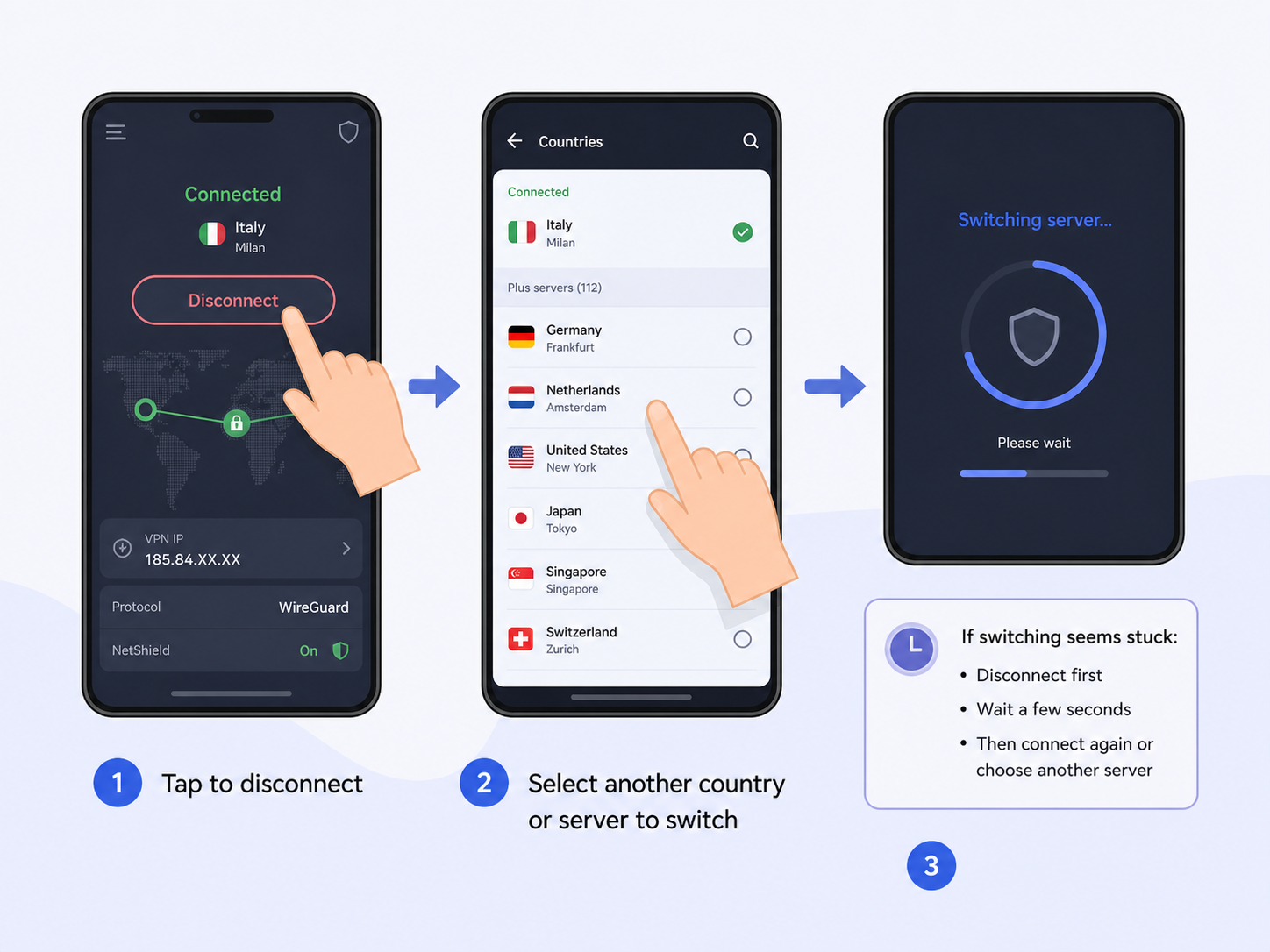
To disconnect, open Proton VPN and tap Disconnect. To change servers, you can usually select another country or server while connected; the app will switch the VPN tunnel. If the connection seems stuck during switching, disconnect first, wait a few seconds, then connect to the new server.
Understanding Android VPN Permissions and Status
Android treats VPN access as a sensitive permission, so every legitimate VPN app must ask for approval. Proton VPN uses this permission to create a secure tunnel between your device and the VPN server. Once connected, Android normally shows a key icon, VPN label, or connection indicator depending on the device.
| Android item | What it means | What you should do |
|---|---|---|
| VPN permission prompt | Android is asking if Proton VPN may create a VPN tunnel. | Approve it if you installed the official app. |
| Key or VPN icon | A VPN connection is active at the system level. | No action needed unless you want to disconnect. |
| Always-on VPN | Android will try to keep the selected VPN active. | Use it if you want stronger connection persistence. |
| Block connections without VPN | Android blocks internet access if the VPN is not connected. | Enable it only if you prefer security over convenience. |
If you enable Android’s option to block connections without VPN, some apps may stop working when Proton VPN is disconnected or reconnecting. That is expected behavior. It prevents traffic from falling back to your normal connection.
Using Split Tunneling on Proton VPN Android
Split tunneling lets you decide which apps use the VPN and which apps bypass it. This is useful when one app does not work well through a VPN, or when you want local-network apps to stay outside the VPN while the rest of your phone remains protected.
In Proton VPN for Android, split tunneling settings may vary depending on app version and account features, but the basic idea is consistent: open the app settings, find Split Tunneling, enable it, then choose the apps or IP addresses that should be included or excluded.
When Split Tunneling Helps
- A banking app blocks VPN connections and only works on your regular network.
- A smart home app needs local network access to find devices.
- A work app requires your normal IP address or a specific network path.
- You want most browsing protected but a low-risk app to use the direct connection for speed.
When You Should Avoid Split Tunneling
Do not exclude sensitive apps unless you have a clear reason. If you remove your browser, email app, messaging app, or file-sharing app from the VPN tunnel, traffic from those apps may use your regular ISP or mobile network route. That can reduce privacy protection.
| Setup choice | Best for | Trade-off |
|---|---|---|
| All apps through Proton VPN | Maximum simplicity and broad privacy protection. | Some local or region-sensitive apps may complain. |
| Exclude selected apps | Banking, smart home, or work apps that fail through VPN. | Excluded apps are not protected by the VPN tunnel. |
| Use Always-on VPN with blocking | Preventing accidental traffic leaks during reconnects. | Internet may stop if the VPN cannot connect. |
Battery Optimization Issues on Android
One of the most common Proton VPN Android problems is not the VPN itself, but Android battery management. Many phones aggressively close background apps to save power. If Android puts Proton VPN to sleep, the VPN may disconnect, reconnect often, or stop protecting traffic until you open the app again.
To reduce this problem, check your device’s battery settings and allow Proton VPN to run in the background. The exact wording varies, but look for settings such as Battery optimization, App battery usage, Background activity, Unrestricted, Do not optimize, or Allow background usage.
Suggested Battery Settings
- Open Android Settings.
- Go to Apps and select Proton VPN.
- Open Battery or App battery usage.
- Choose Unrestricted, Not optimized, or Allow background activity if available.
- If your phone has a separate app lock or auto-start setting, allow Proton VPN there too.
On some devices, especially heavily customized Android phones, you may need to make more than one change. For example, one menu may allow background battery use, while another controls whether the app may auto-start after a reboot.
Quick Fixes for Unstable Proton VPN Connections
If Proton VPN connects but drops often, fails to load pages, or feels unstable, start with the simple fixes before changing advanced settings. Connection problems are often caused by server load, weak Wi-Fi, restrictive networks, battery limits, or conflicting VPN settings.
Try These Fixes First
- Switch to another Proton VPN server in the same country.
- Use Quick Connect instead of manually choosing a busy server.
- Change networks, for example from Wi-Fi to mobile data, to see if the issue follows the network.
- Restart the Proton VPN app and reconnect.
- Restart the phone if Android’s VPN service appears stuck.
- Update Proton VPN from Google Play or the official source.
- Disable battery optimization for Proton VPN.
- Check whether another VPN, private DNS app, firewall app, or ad-blocking app is conflicting.
Check the VPN Protocol Setting
Proton VPN may offer different protocol options depending on the Android app version. If the connection is unreliable on one network, open Proton VPN settings and try the recommended automatic option or another available protocol. Automatic selection is usually best for most people because the app can choose a suitable connection method.
If you are on public Wi-Fi, school Wi-Fi, hotel Wi-Fi, or a workplace network, the network may block or restrict VPN traffic. In that case, changing servers or protocol settings can help, but some networks are intentionally limited.
When Websites or Apps Do Not Work Through the VPN
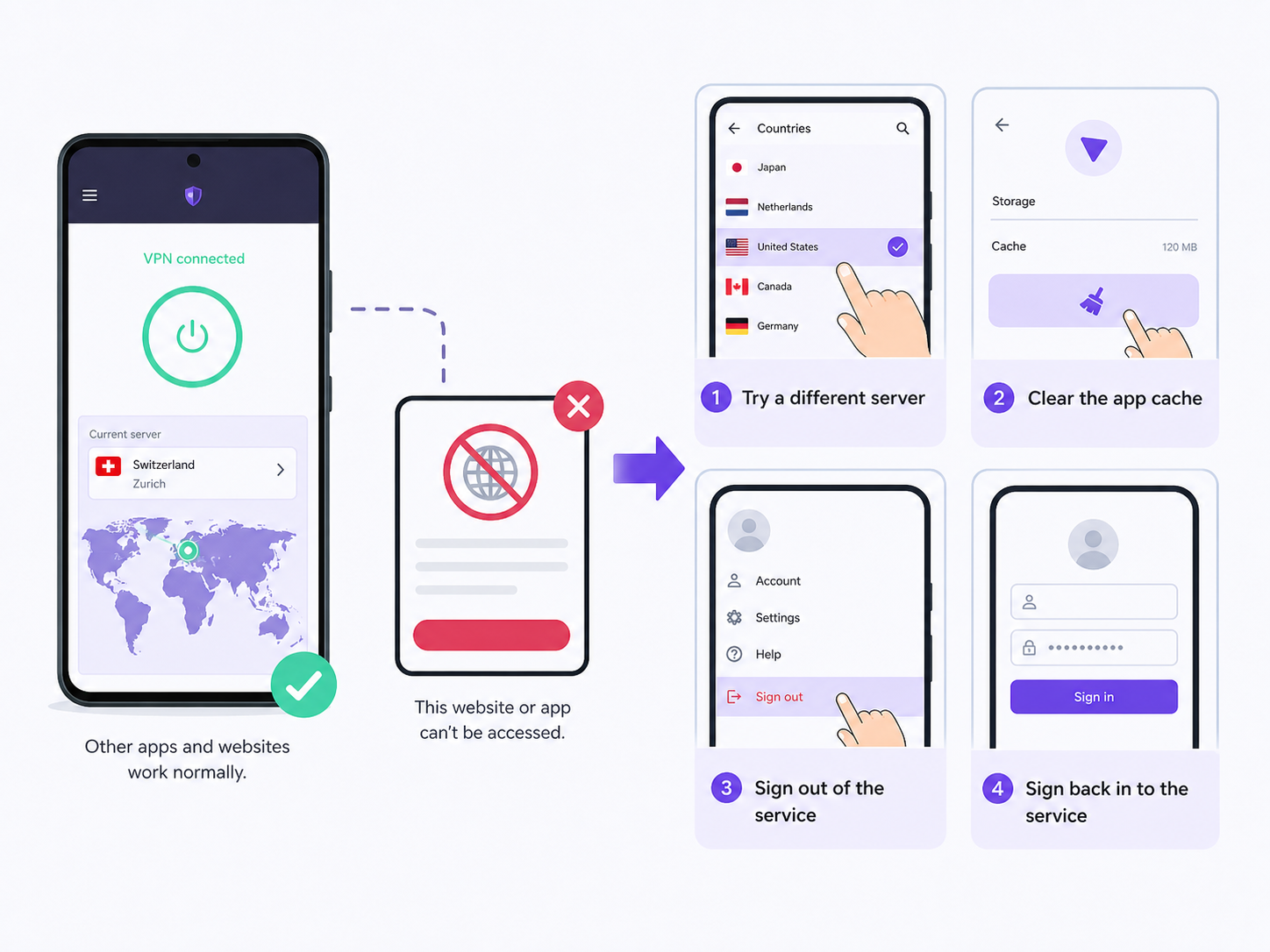
Some websites and apps block VPN IP addresses or require location checks. If one service fails while the rest of the internet works, the VPN connection may be fine. Try a different server, clear the app cache, sign out and back into the affected service, or use split tunneling for that specific app if privacy risk is acceptable.
Practical Settings for Everyday Use
For most Android users, a simple Proton VPN setup is enough: use Quick Connect, keep the app updated, leave protocol selection on automatic, and disable battery restrictions. If privacy is more important than uninterrupted convenience, enable Android’s Always-on VPN and consider blocking connections without VPN.
If you travel, use public Wi-Fi often, or handle sensitive work on your phone, Always-on VPN is worth considering. If you mainly use Proton VPN occasionally for browsing or streaming, manual connection may be more convenient.
| User need | Recommended setting | Reason |
|---|---|---|
| Simple daily privacy | Quick Connect with automatic protocol | Fast setup with minimal maintenance. |
| Public Wi-Fi protection | Always-on VPN | Keeps VPN active when moving between networks. |
| Stronger leak prevention | Block connections without VPN | Stops traffic if VPN disconnects. |
| App compatibility | Split tunneling for selected apps | Lets problem apps bypass the VPN when necessary. |
| Connection stability | Disable battery optimization | Prevents Android from closing the VPN in the background. |
Security and Privacy Notes
A VPN improves privacy by encrypting traffic between your device and the VPN server and masking your IP address from many websites and networks. It does not make unsafe apps safe, remove the need for HTTPS, or protect you from phishing. Keep Android updated, use trusted apps, and be careful with suspicious links even when the VPN is connected.
Also remember that split tunneling changes your protection model. Any app you exclude from Proton VPN may connect directly through your normal network. Use exclusions sparingly and review them from time to time.
Conclusion
Using Proton VPN on Android is straightforward once you understand the few Android-specific parts. Install the official app, sign in, approve the VPN permission, connect with Quick Connect or a chosen server, and confirm the VPN indicator appears. For a smoother experience, allow Proton VPN to run in the background, use split tunneling only when needed, and switch servers or protocols if a connection becomes unstable.
If you want the most dependable setup, keep Proton VPN updated, leave protocol selection on automatic, disable restrictive battery optimization, and consider Always-on VPN for public Wi-Fi or privacy-sensitive use.
FAQ
How do I know Proton VPN is working on Android?
Open Proton VPN and check that it says connected. You should also see Android’s VPN or key icon in the status bar. If websites load while the app shows connected, the VPN tunnel is active.
Why does Android ask for VPN permission for Proton VPN?
Android requires every VPN app to request permission before creating a VPN tunnel. Approving the prompt lets Proton VPN route your network traffic through its encrypted connection.
Can I use Proton VPN Android for only some apps?
Yes, use split tunneling if it is available in your Proton VPN Android app. You can exclude selected apps from the VPN or configure which traffic should use the VPN, depending on the app version and settings.
Why does Proton VPN keep disconnecting on my phone?
The most common causes are weak Wi-Fi, busy servers, battery optimization, network restrictions, or conflicts with another VPN or security app. Try another server, update the app, and allow Proton VPN to run unrestricted in the background.
Should I enable Always-on VPN with Proton VPN?
Enable Always-on VPN if you want Android to keep Proton VPN active as much as possible. If you also enable blocking connections without VPN, your internet may stop whenever the VPN is disconnected or unable to connect.