
Table of contents
- What split tunneling does in Proton VPN
- Supported platforms
- Common use cases for Proton VPN split tunneling
- How to exclude apps from VPN in Proton VPN on Windows
- How to route only selected apps through Proton VPN on Windows
- How to include or exclude IP addresses
- Exclude an IP address from the VPN
- Include only selected IP addresses in the VPN on Windows
- How split tunneling works on Android
- Privacy and security risks before bypassing the VPN
- Practical checklist before using split tunneling
- When you should avoid split tunneling
- FAQ
- Does Proton VPN split tunneling hide my IP address?
- Can I exclude apps from VPN in Proton VPN?
- Can I exclude IP addresses from Proton VPN?
- Is Proton VPN split tunneling available on Mac or iPhone?
- Is split tunneling safe to use?
Proton VPN split tunneling is a feature that lets you choose which apps or IP addresses use the VPN and which ones bypass it. Traffic inside the tunnel is encrypted and appears to come from your Proton VPN server. Traffic outside the tunnel uses your normal internet connection, so your ISP, local network, or the destination service may see your real IP address. In Proton VPN, split tunneling is documented mainly for Windows and Android, with Windows offering the most flexible include and exclude controls.
What split tunneling does in Proton VPN
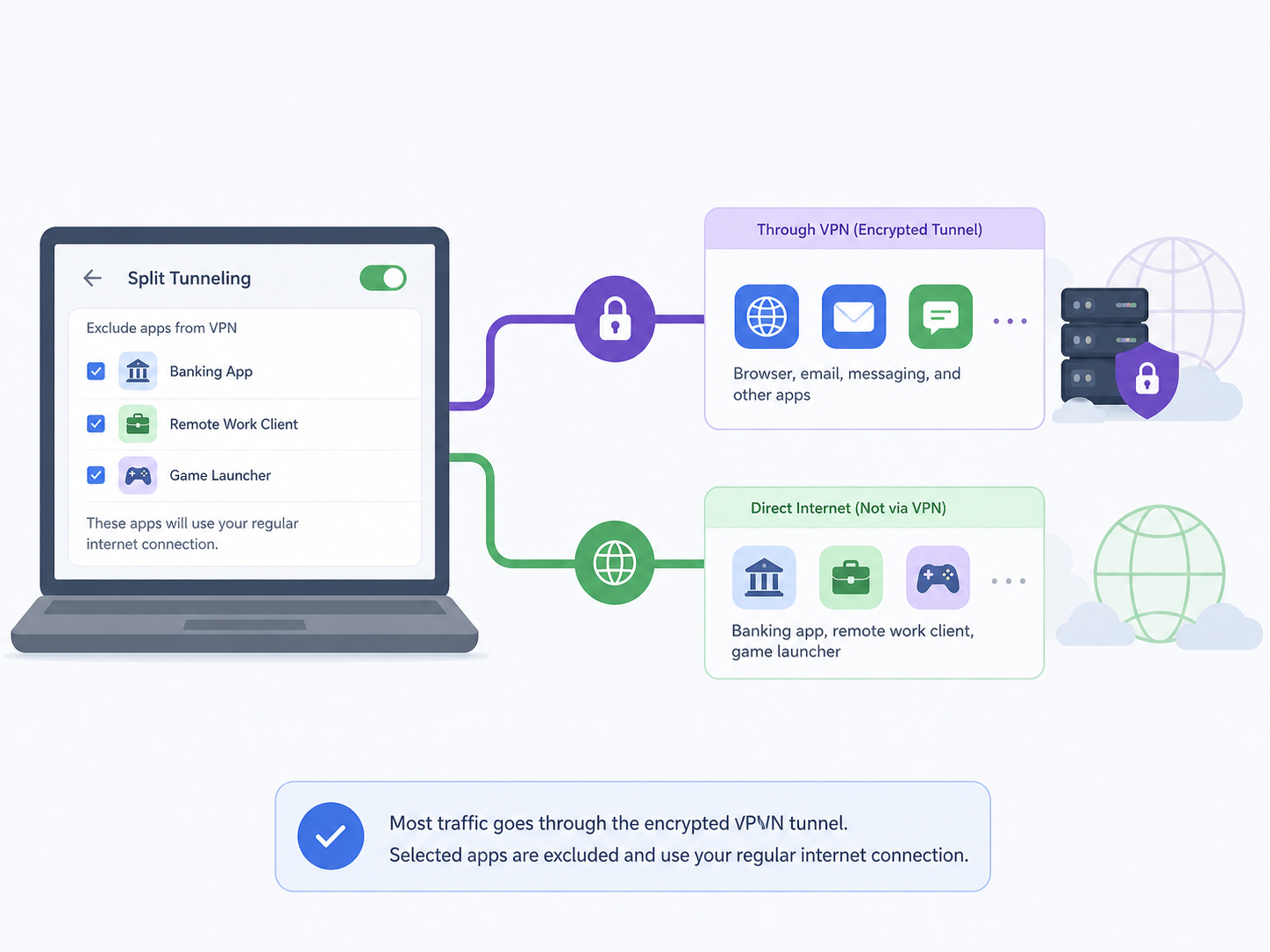
A normal VPN connection sends almost all internet traffic through the VPN tunnel. Split tunneling changes that default behavior. Instead of treating every app the same way, Proton VPN lets you create rules for specific apps or IP addresses.
There are two common ways to use a VPN split tunnel:
- Exclude selected traffic from the VPN: Most traffic stays protected by Proton VPN, but chosen apps or IP addresses use your regular connection.
- Include only selected traffic in the VPN: Only chosen apps or IP addresses use Proton VPN, while everything else uses your regular connection. Proton VPN calls this inverse split tunneling on Windows.
The important point is simple: split tunneling is not a stronger form of VPN protection. It is a routing choice. It can make daily browsing more convenient, but anything you exclude from the VPN loses the privacy benefits of the tunnel.
Supported platforms
Proton VPN documents split tunneling for its Windows and Android apps. The exact controls are not identical on every platform, so it is worth checking the app you actually use rather than assuming the same options exist everywhere.
| Platform | Split tunneling support | What you can usually configure |
|---|---|---|
| Windows | Supported in the Proton VPN desktop app | Exclude apps or IP addresses from the VPN, or use inverse split tunneling to include only selected apps or IP addresses |
| Android | Supported in the Proton VPN Android app | Exclude selected apps and IP addresses from the VPN tunnel |
| macOS | Not offered through the same documented Proton VPN split tunneling controls | Check the current app settings for feature changes |
| iOS and iPadOS | Not offered through the same documented Proton VPN split tunneling controls | Apple platform limitations usually make app-level VPN routing more restricted |
| Linux | Not generally presented as the same app-based feature in Proton VPN documentation | Advanced users may rely on system routing, but that is not the same as the built-in Windows or Android control |
If you do not see split tunneling in your Proton VPN app, update the app first and then check the platform-specific settings. Feature availability can vary by operating system and app version.
Common use cases for Proton VPN split tunneling
Split tunneling is useful when one part of your internet activity needs VPN privacy while another part works better on your regular connection. Here are the most common cases.
| Use case | Best routing choice | Why it helps |
|---|---|---|
| Access a local printer, NAS, or router page | Exclude the local IP address from the VPN | Keeps local network access working while the rest of your traffic stays protected |
| Use a banking app that blocks VPNs | Exclude the banking app | Reduces login failures or extra verification caused by a VPN server location |
| Route only a torrent client through Proton VPN | Use inverse split tunneling on Windows | Keeps that app behind the VPN while normal browsing uses your regular connection |
| Improve latency for a game or video call | Exclude the game or calling app | A direct route may reduce ping or avoid unstable connections |
| Reach a work tool that only allows your home IP | Exclude the work app or work server IP | The service sees your normal IP instead of the VPN server IP |
How to exclude apps from VPN in Proton VPN on Windows
Use this method when you want most traffic to stay protected by Proton VPN, but you want one or more apps to bypass the VPN.
- Open the Proton VPN Windows app.
- Go to Settings, then open the advanced settings area.
- Find Split tunneling and turn it on.
- Choose the option to exclude selected apps from the VPN tunnel.
- Add the app you want to bypass the VPN. If it is not listed, browse to the app executable file.
- Reconnect Proton VPN so the routing rule is applied cleanly.
This is the setting people usually mean when they search for how to exclude apps from VPN. For example, you might exclude a banking app, a remote work client, or a game launcher while keeping your browser and other apps inside the encrypted VPN tunnel.
How to route only selected apps through Proton VPN on Windows
If you want the opposite behavior, use inverse split tunneling. This is useful when only one app needs VPN protection and you do not want the rest of your device to use the VPN.
- Open Proton VPN on Windows.
- Go to Settings and enable Split tunneling.
- Select the mode that sends only included apps through the VPN tunnel.
- Add the apps that should use Proton VPN.
- Connect or reconnect to a Proton VPN server.
A common example is routing a download client, browser profile, or testing tool through Proton VPN while leaving all other desktop traffic outside the tunnel. Be careful with this setup: any app you forget to include will not be protected by the VPN.
How to include or exclude IP addresses
App rules work well when you know the exact program you want to control. IP rules are better when you need to route traffic to a specific server, local device, or network address.
Exclude an IP address from the VPN
Use IP exclusion when you want a specific address to stay reachable outside the VPN tunnel. This is common for local network devices such as routers, printers, media servers, or NAS devices.
- Open Proton VPN and go to the split tunneling settings.
- Choose the option to exclude IP addresses from the VPN tunnel.
- Enter the IP address you want to bypass the VPN.
- Save the rule and reconnect the VPN.
- Test the service or device to confirm the route works as expected.
Include only selected IP addresses in the VPN on Windows
On Windows, inverse split tunneling can also be used for IP addresses. This sends only traffic to selected IP addresses through Proton VPN while other traffic uses your normal connection.
- Enable split tunneling in the Proton VPN Windows app.
- Select the inverse mode that includes only chosen apps or IP addresses in the VPN tunnel.
- Add the IP address that should use Proton VPN.
- Reconnect to Proton VPN.
- Confirm the destination sees the VPN server IP, not your regular IP.
Be cautious when using IP-based rules for websites. Many websites use multiple IP addresses, content delivery networks, and changing server addresses. If you add only one IP, some parts of the site may still route differently than you expect.
How split tunneling works on Android
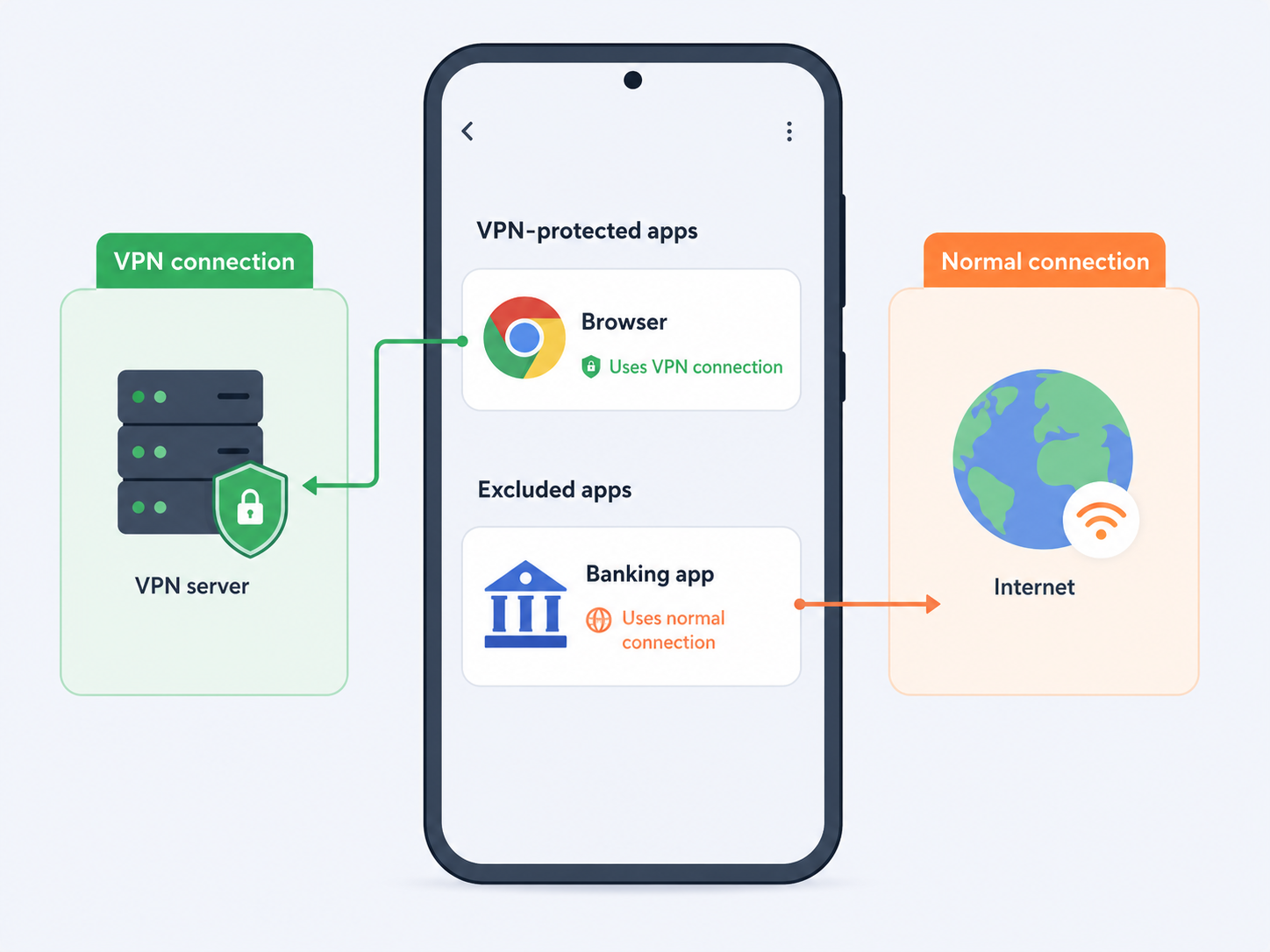
On Android, Proton VPN split tunneling is mainly used to exclude apps or IP addresses from the VPN tunnel. This is helpful when an app does not work well with VPNs or when a local device needs to be reached directly.
- Open the Proton VPN Android app.
- Go to the app settings.
- Open the split tunneling option.
- Turn split tunneling on.
- Select the apps you want to exclude from the VPN.
- Add any IP addresses that should bypass the VPN, if needed.
- Reconnect the VPN connection.
For example, you could keep your browser protected by Proton VPN while excluding a banking app that blocks VPN traffic. The excluded Android app will use your normal network connection instead of the VPN server.
Privacy and security risks before bypassing the VPN
Split tunneling is convenient, but it creates exceptions. Those exceptions matter. Before you bypass the VPN for an app or IP address, consider these risks.
- Your real IP may be exposed: Excluded apps and IP addresses do not use the Proton VPN server, so destination services can usually see your normal IP address.
- Traffic may not be encrypted by the VPN: The VPN tunnel no longer protects excluded traffic. You still depend on HTTPS or the app's own encryption.
- DNS behavior can be confusing: Depending on the app, operating system, and route, DNS requests may not behave the same way for excluded and tunneled traffic.
- Apps may use helper processes: Some apps launch background services, updaters, or browser components. If you only add one executable, related traffic may not follow the same rule.
- IP rules can break when services change addresses: Websites and cloud apps often use many IPs. A rule that works today may be incomplete later.
- Kill switch expectations can be wrong: Do not assume VPN kill switch behavior protects traffic you deliberately routed outside the VPN.
A good rule of thumb is to exclude only what you need. If an app contains sensitive browsing, messaging, file transfers, or account activity, think twice before sending it outside the VPN.
Practical checklist before using split tunneling
- Decide whether you need exclusion mode or inverse mode.
- Use app rules when controlling a known program, and IP rules when targeting a device or server.
- Reconnect Proton VPN after changing split tunneling rules.
- Test your public IP inside and outside the selected app if privacy matters.
- Keep the rule list short so it is easy to audit later.
- Review rules after app updates, because executable paths and helper processes can change.
When you should avoid split tunneling
Avoid split tunneling if your goal is maximum privacy on untrusted Wi-Fi, if you are handling sensitive work data, or if you are not sure which apps send the traffic you care about. In those situations, routing everything through Proton VPN is usually simpler and safer.
Split tunneling makes the most sense when there is a clear reason to bypass the VPN: a local device, an app that refuses VPN connections, a latency-sensitive service, or a single app that should be isolated inside the VPN. If the reason is vague, leave the full VPN tunnel on.
FAQ
Does Proton VPN split tunneling hide my IP address?
Only for the traffic that goes through Proton VPN. Apps or IP addresses excluded from the VPN can usually see and use your real internet connection and IP address.
Can I exclude apps from VPN in Proton VPN?
Yes. Proton VPN lets you exclude apps from the VPN on supported platforms, including Windows and Android. On Windows, you can also use inverse split tunneling to route only selected apps through the VPN.
Can I exclude IP addresses from Proton VPN?
Yes, Proton VPN supports IP-based split tunneling on supported apps. This is useful for local devices, work servers, or specific destinations, but website IPs can change and may require more than one rule.
Is Proton VPN split tunneling available on Mac or iPhone?
Proton VPN's documented split tunneling feature is mainly available on Windows and Android. If you use macOS, iOS, or iPadOS, check the current app settings because the same app-level controls may not be available.
Is split tunneling safe to use?
It is safe when you understand the trade-off. Tunneled traffic keeps VPN protection, while bypassed traffic does not. Use it only for apps or IP addresses that you are comfortable sending outside the VPN.