
Table of contents
- Quick Answer: The Main Ways to Change Server in Proton VPN
- How to Switch Countries in Proton VPN
- Steps to Change to Another Country
- How to Choose an Individual Server in Proton VPN
- Steps to Pick a Specific Server
- Understanding Proton VPN Server Load Indicators
- Using Quick Connect and Fastest Server Options
- When Quick Connect Makes Sense
- Secure Core Basics: What Changes When You Use It
- When to Use Secure Core
- Nearby Server or Specific Location: Which Should You Choose?
- Troubleshooting When Server Switching Does Not Work
- Practical Tips for Better Server Choices
- FAQ
- How do I change servers in Proton VPN?
- Can I choose a specific Proton VPN country?
- What does server load mean in Proton VPN?
- Should I choose the closest VPN server location?
- Is Secure Core better than a normal Proton VPN server?
To change servers in Proton VPN, open the app, go to the country or server list, and select a new VPN server location. You can switch to a different Proton VPN country, expand a country to choose a city or individual server, or use Quick Connect to let the app pick the fastest available server for you. The Proton VPN change server process is simple, but choosing the right option depends on whether you care most about speed, a specific location, privacy, or access to a regional service.
Quick Answer: The Main Ways to Change Server in Proton VPN
Proton VPN gives you several ways to move from one server to another. The exact layout can vary slightly between Windows, macOS, Linux, Android, iOS, and browser extensions, but the logic is the same across the apps.
- Switch country: choose a country from the Countries list or map to get an IP address from that location.
- Choose a city: expand a supported country and select a city, useful for large countries such as the United States, Germany, or Japan.
- Pick an individual server: expand the country and city list, then choose a numbered server with a lower load percentage.
- Use Quick Connect: let Proton VPN choose a fast server automatically based on your location, server load, and availability.
- Use Secure Core: route traffic through Proton VPN’s hardened Secure Core network before exiting in the country you choose.
How to Switch Countries in Proton VPN
If your goal is to appear as if you are browsing from another country, use the country list. This is the most common method when you need a different regional IP address, want to check local search results, or need a VPN server location close to where a service is based.
Steps to Change to Another Country
- Open the Proton VPN app and sign in.
- If you are already connected, you can either disconnect first or select a new location directly if your app shows a Change server or country option.
- Open the Countries list. On some apps, this appears as a sidebar; on mobile, it may be a tab or list below the map.
- Scroll or use search to find the Proton VPN country you want.
- Click or tap the country name to connect to the fastest available server in that country.
- Wait until the app shows Connected and confirms your new VPN IP address.
For example, if you are in Canada and want a German IP address, choose Germany from the country list. Proton VPN will usually connect you to a suitable German server automatically unless you expand the country and choose a city or server yourself.
How to Choose an Individual Server in Proton VPN
Choosing an individual server is useful when one server is crowded, a website blocks a specific IP address, or you want more control over performance. Paid Proton VPN plans generally provide more server and city choices than the free plan, and some specialty servers may require a specific plan.
Steps to Pick a Specific Server
- Open Proton VPN and go to the Countries list.
- Find the country you want to use.
- Click or tap the arrow, dropdown, or expand control next to the country name.
- If city options are available, choose the city you prefer.
- Review the available numbered servers and their load indicators.
- Select a server with a lower load percentage, preferably one that is not marked as heavily loaded.
- Connect and test your browsing speed or the service you plan to use.
If a website does not work on one server, do not assume the whole country is unavailable. Try another server in the same country first. A fresh IP address often fixes login prompts, blocked pages, or unstable video playback.
Understanding Proton VPN Server Load Indicators
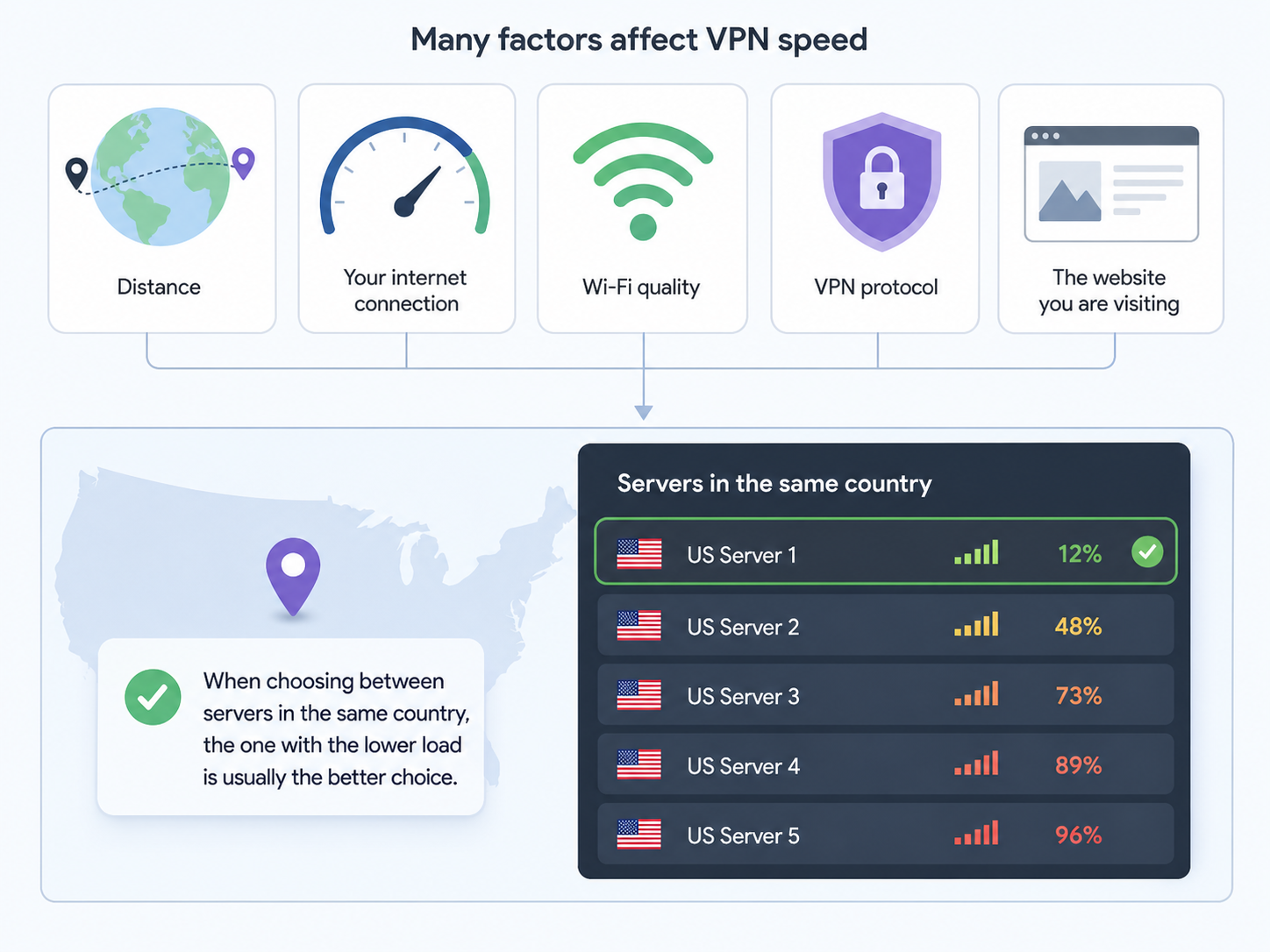
Server load shows how busy a VPN server is. In Proton VPN, this is usually shown as a percentage and often with a color indicator. A lower load normally means the server has more available capacity, which can improve speed and stability.
| Indicator | What it usually means | Best use |
|---|---|---|
| Low load | The server has plenty of available capacity. | Best choice for speed, streaming, browsing, and downloads. |
| Medium load | The server is being used by more people but still has room. | Usually fine for everyday browsing, email, and standard video. |
| High load | The server is crowded and may feel slower. | Use only if you specifically need that location or server. |
Load is not the only factor that affects speed. Distance, your internet connection, Wi-Fi quality, VPN protocol, and the website you are visiting also matter. Still, when you are choosing between several servers in the same country, the one with the lower load is usually the safer pick.
Using Quick Connect and Fastest Server Options
Quick Connect is the easiest option when you do not need a specific country. Proton VPN evaluates available servers and connects you to a fast option, usually based on distance, latency, and current server load. This is the best everyday choice for general privacy, safer public Wi-Fi, and routine browsing.
When Quick Connect Makes Sense
- You only want your traffic encrypted and do not care which country your IP address comes from.
- You want the lowest practical latency for browsing, video calls, or gaming.
- You are troubleshooting slow speeds and want Proton VPN to choose a better server automatically.
- You are using a mobile connection and want a simple, reliable default.
If the app also offers a fastest server option inside a specific country, that means Proton VPN will choose the best available server within that country rather than globally. This is useful when you need an IP address from one country but still want the strongest performance available there.
Secure Core Basics: What Changes When You Use It
Secure Core is Proton VPN’s multi-hop privacy feature. Instead of sending your traffic directly through the final VPN country, Secure Core routes it through a hardened Proton-controlled server first, then exits through your chosen country. The final website sees the exit country, not the Secure Core entry location.
In simple terms, Secure Core adds an extra privacy layer. It is designed for people who are more concerned about network-level attacks, high-risk environments, or stronger protection against compromised VPN infrastructure. The trade-off is that Secure Core is usually slower than a standard single-hop VPN connection because your traffic travels through more than one server.
When to Use Secure Core
- Use it when you are handling sensitive work and want extra routing protection.
- Use it when you are connecting from a network you do not trust.
- Use it when privacy matters more than maximum speed.
- Skip it for gaming, low-latency video calls, or large downloads unless you specifically need the added protection.
To use Secure Core, turn on the Secure Core option in the Proton VPN app, then choose the exit country or route shown in the server list. If speed drops too much, switch back to a standard server in a nearby country.
Nearby Server or Specific Location: Which Should You Choose?
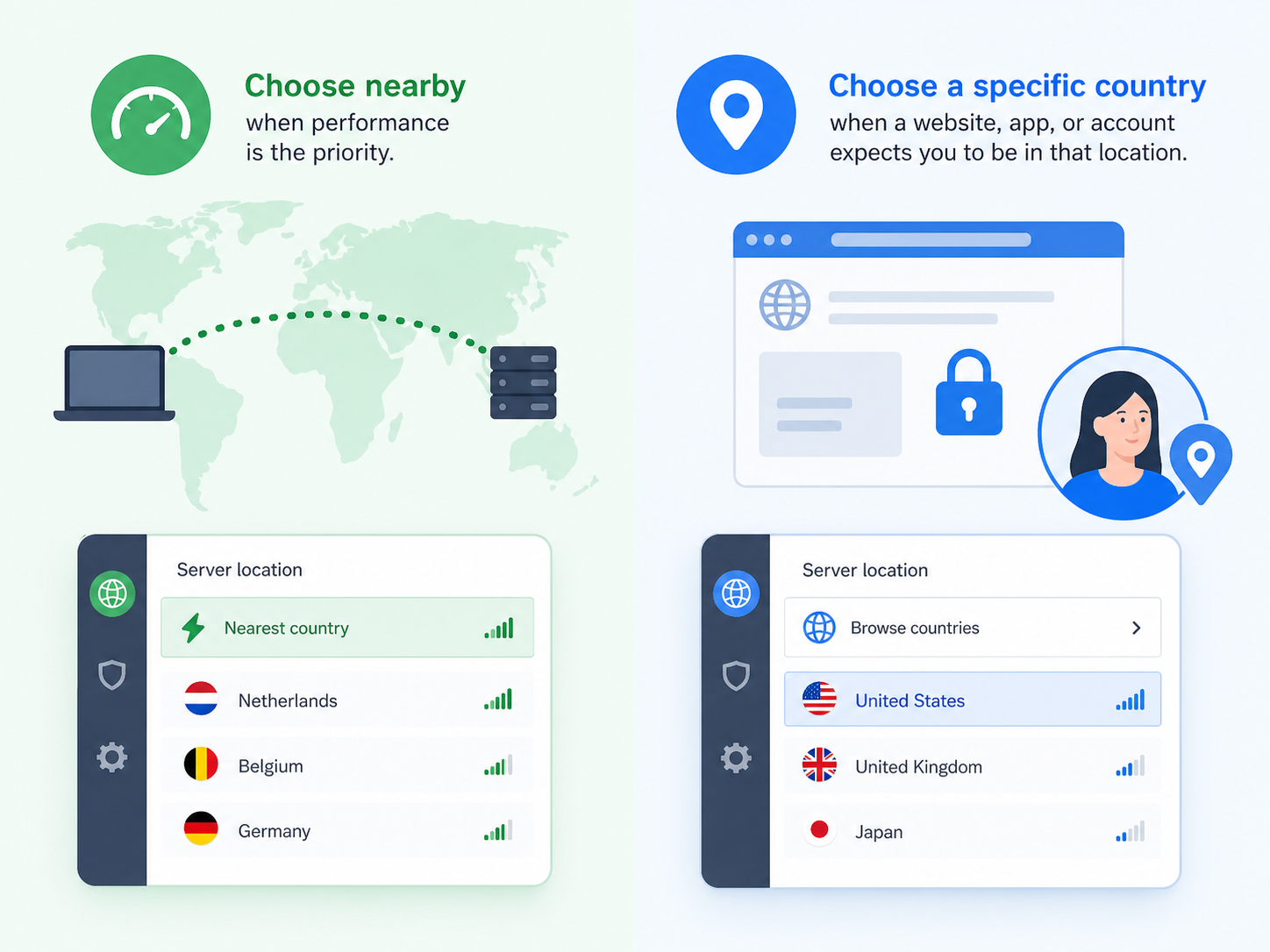
The best VPN server location depends on your goal. A nearby server is usually faster because your data travels a shorter physical and network distance. A specific country or city is better when location matters more than raw speed.
| Your goal | Best server choice | Why it works |
|---|---|---|
| Fast browsing and downloads | Nearby country or Quick Connect | Shorter distance usually means lower latency and better speed. |
| Watching a regional service | Specific country required by that service | The service checks your VPN IP location. |
| Local search results | Specific country or city if available | Search engines often tailor results to IP location. |
| Online banking or travel accounts | Your home country or usual region | Unusual locations can trigger extra security checks. |
| Maximum privacy on risky networks | Secure Core route | Multi-hop routing adds another layer of protection. |
| Gaming or video calls | Nearby low-load server | Lower latency matters more than country choice. |
As a rule, choose nearby when performance is the priority. Choose a specific Proton VPN country when a website, app, or account expects you to be in that location.
Troubleshooting When Server Switching Does Not Work
If Proton VPN does not change servers as expected, the problem is usually temporary. Try the simple fixes first before changing advanced settings.
- Wait a few seconds: the app may still be disconnecting from the previous server.
- Try another server in the same country: one IP address may be blocked while others work normally.
- Choose a lower-load server: crowded servers can feel slow or unstable.
- Restart the app: this can clear stuck connection states.
- Check your plan: some countries, specialty servers, Secure Core routes, or individual server selection options may depend on your Proton VPN plan.
- Update Proton VPN: older app versions may not show the latest server list or interface improvements.
If a site still shows the old location after you switch servers, clear the site’s cookies or open a private browsing window. Some websites remember previous location data from your account, browser storage, GPS permissions, or payment profile, not just your current IP address.
Practical Tips for Better Server Choices
- Start with Quick Connect if you only need privacy and speed.
- Use the fastest server inside a country when you need that country but do not care about the city.
- Pick a low-load individual server if a connection feels slow or unstable.
- Use a nearby server for gaming, calls, and daily browsing.
- Use a specific country for regional websites, local search testing, and travel-related accounts.
- Use Secure Core when privacy risk is higher, and accept that speed may be lower.
The best setup is not always the most private-looking one or the farthest country on the list. For most people, the best Proton VPN server is the one that matches the task: nearby for speed, specific for location, and Secure Core for stronger privacy needs.
FAQ
How do I change servers in Proton VPN?
Open Proton VPN, go to the Countries list, and select a new country, city, or individual server. If you do not need a specific location, use Quick Connect to let Proton VPN choose a fast server automatically.
Can I choose a specific Proton VPN country?
Yes. Select the country from the Proton VPN country list. If you want more control, expand the country to choose a city or individual server when those options are available on your plan.
What does server load mean in Proton VPN?
Server load shows how busy a server is. A lower load percentage usually means better available capacity, which can help with speed, streaming stability, and general browsing performance.
Should I choose the closest VPN server location?
Choose a nearby server when speed and low latency matter. Choose a specific VPN server location when you need an IP address from a certain country for search results, regional content, or account access.
Is Secure Core better than a normal Proton VPN server?
Secure Core offers stronger privacy routing by sending traffic through Proton VPN’s hardened network before the exit country. It is useful for higher-risk situations, but it is usually slower than a normal server.