
Table of contents
- How ProtonVPN hides your IP address
- What websites can see
- What your ISP can see
- What ProtonVPN can see
- What changes and what stays visible
- How to test for IP, DNS, and WebRTC leaks
- Settings that improve privacy
- Best settings for most users
- Important limits you should know
- FAQ
- Does ProtonVPN hide my IP address completely?
- Can my ISP see what I am doing with ProtonVPN on?
- How do I know if ProtonVPN is leaking my real IP?
- Which ProtonVPN settings are best for privacy?
- Does hiding my IP make me anonymous?
Yes — ProtonVPN can hide your real IP address from the websites and services you visit by replacing it with the VPN server’s IP. That means the site sees ProtonVPN’s address, not your home or mobile one, as long as the VPN is connected and not leaking. If you want to try the basics first, the Proton VPN free plan is enough to confirm the IP change on a normal browser.
How ProtonVPN hides your IP address
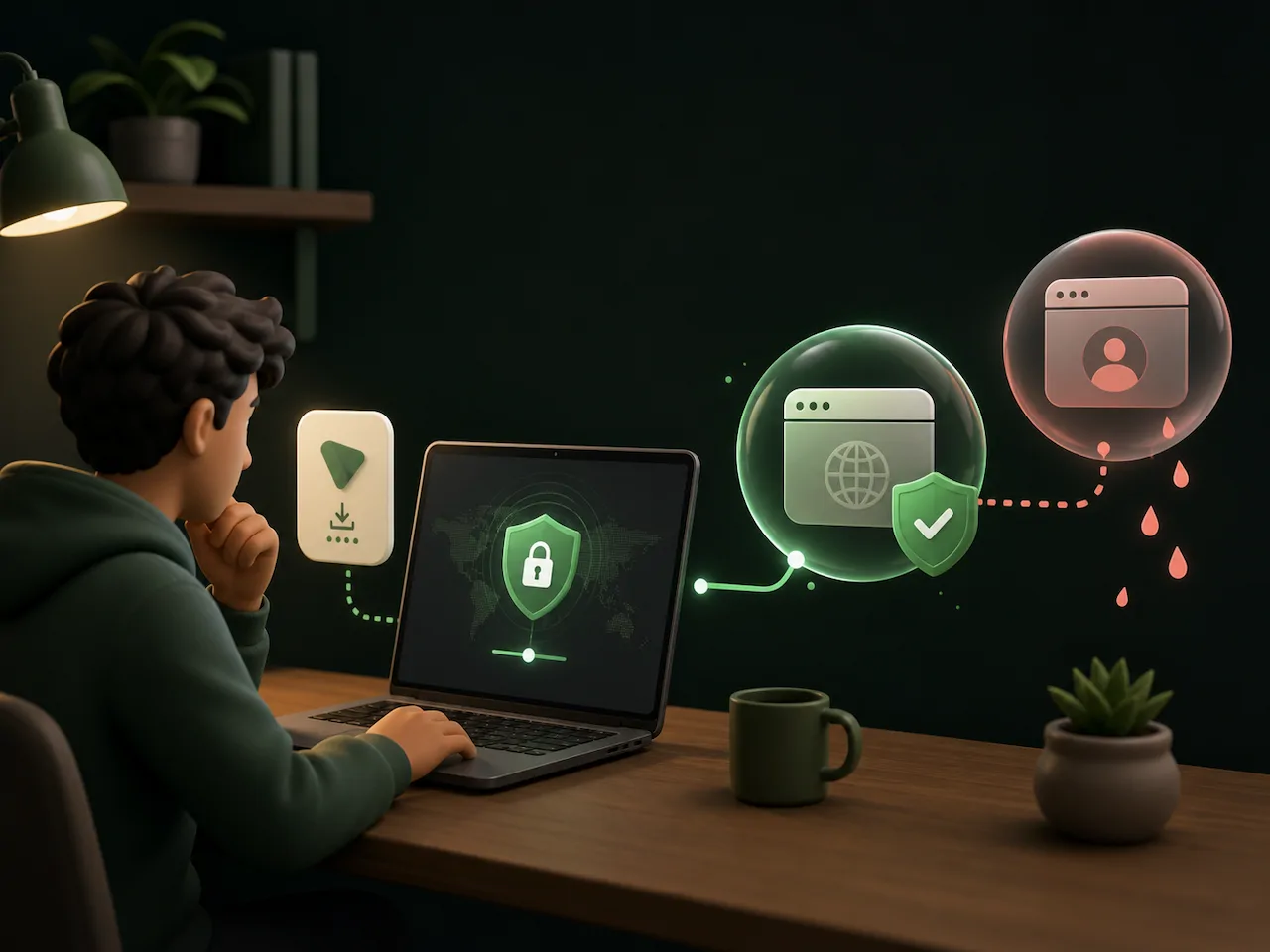
When you connect, ProtonVPN creates an encrypted tunnel between your device and its server. Your traffic exits from that server, so the website you visit sees the server’s public IP instead of yours. In simple terms, ProtonVPN masks your IP address at the network level. It does not change your device identity, but it does hide where the connection is really coming from.
What websites can see
- The VPN server IP, not your home IP.
- The approximate location of that server.
- Your browser fingerprint, cookies, and account logins if you allow them.
- Any information you type into forms or accounts.
What your ISP can see
Your ISP can see that you are connected to a VPN server, plus basic connection metadata such as timing and data volume. It should not see the websites you are visiting or the pages you open, as long as the VPN tunnel is working correctly and you are not leaking DNS or WebRTC data.
What ProtonVPN can see
Like any VPN provider, ProtonVPN can operate the server that carries your traffic. That means it can handle your VPN connection and see the traffic leaving its servers, but HTTPS still protects the content of most modern websites end to end. A VPN improves privacy, but it is not the same thing as full anonymity.
What changes and what stays visible
| Observer | Sees your real IP? | Sees where you browse? | Notes |
|---|---|---|---|
| Websites you visit | No | Only the VPN server location | They may still identify you through cookies, logins, or fingerprinting |
| Your ISP | No | No, if the tunnel is working | It can still see that you are using ProtonVPN and how much data you send |
| ProtonVPN | Yes, at connection time | It routes your traffic | It is the middle layer, so your traffic passes through its servers |
How to test for IP, DNS, and WebRTC leaks
If you want proof that ProtonVPN is hiding your IP address correctly, test it in the same browser and device you normally use. Before you connect, note your current public IP. Then connect to ProtonVPN and check again. If everything is working, the new IP should match the VPN server, not your ISP.
- Open a browser and check your current public IP address.
- Connect to ProtonVPN using the same device and browser.
- Refresh the IP check and confirm the address has changed.
- Run a DNS leak test and confirm the DNS servers are associated with the VPN, not your ISP.
- Run a WebRTC leak test in your browser to see whether your local or real IP appears.
- Disconnect and reconnect once more to make sure the result is stable.
If your real IP still appears, try a different server, turn on the kill switch, and repeat the test. Browser extensions, split tunneling, or an outdated app are common reasons for leaks.
If you have not installed it yet, download ProtonVPN on the device you actually use for browsing, then test on that same setup. A VPN can look perfect in one app and still leak in another browser or profile.
Settings that improve privacy
The best privacy setup is usually simple. Start with the basics, then add stronger options only if you need them. For most people, the goal is to block leaks first and reduce extra exposure second.
| Setting | Why it helps | When to use it |
|---|---|---|
| Kill Switch | Stops traffic if the VPN drops, which helps prevent IP leaks | Use it all the time on sensitive connections |
| Auto-connect | Connects the VPN before you start browsing, so you do not forget | Best for laptops, phones, and public Wi-Fi |
| DNS leak protection | Keeps DNS lookups inside the VPN tunnel | Leave it on if you care about privacy |
| Secure Core | Adds an extra routing layer before traffic leaves the ProtonVPN network | Useful for stronger privacy, though it can be slower |
| Split tunneling off | Prevents certain apps from bypassing the VPN | Turn it off unless you have a specific reason to use it |
Best settings for most users
- Turn on the kill switch.
- Use auto-connect on startup and on untrusted Wi-Fi.
- Keep DNS leak protection enabled.
- Disable split tunneling unless you need an app outside the VPN.
- Use Secure Core when privacy matters more than speed.
Important limits you should know
- A VPN hides your IP address, but it does not hide your browser cookies or account logins.
- If you sign in to Google, Facebook, or another account, that service can still identify you.
- Location services on your device can reveal your position even when the VPN is on.
- A VPN does not protect you from malware, phishing, or unsafe downloads.
- Split tunneling can expose some traffic outside the VPN if you configure it that way.
FAQ
Does ProtonVPN hide my IP address completely?
It hides your real IP from websites and online services, but not from every form of tracking. Cookies, logins, and browser fingerprinting can still identify you.
Can my ISP see what I am doing with ProtonVPN on?
Your ISP can see that you are using a VPN and how much data you send, but it should not see the sites you visit if the VPN tunnel is working and there are no leaks.
How do I know if ProtonVPN is leaking my real IP?
Check your IP before and after connecting, then run DNS and WebRTC leak tests. If your ISP IP still appears, switch servers, enable the kill switch, and test again.
Which ProtonVPN settings are best for privacy?
The most useful ones are the kill switch, auto-connect, DNS leak protection, and Secure Core for extra routing. Turn off split tunneling unless you really need it.
Does hiding my IP make me anonymous?
No. Hiding your IP is only one layer of privacy. To stay harder to track, you also need to watch for logins, cookies, browser fingerprinting, and location permissions.
Bottom line: ProtonVPN can hide your IP address from the websites you visit, and it does a good job when the app is configured well. Just remember that privacy is a stack, not a single switch. If you want the result to hold up in real use, test for leaks, keep the kill switch on, and avoid assumptions about anonymity.