
Table of contents
- Install ProtonVPN on Android
- Quick setup tips before you connect
- Connect to a server
- Change the VPN protocol on Android
- Enable Always-on VPN
- Fix common connection issues
- A practical troubleshooting order
- What a good Android setup looks like
- FAQ
- Is ProtonVPN free on Android?
- How do I choose the fastest server?
- Why does ProtonVPN keep disconnecting on my phone?
- Can I use ProtonVPN with mobile data?
- Do I need Always-on VPN?
To use ProtonVPN on Android, install the app, sign in, choose a server, and tap Connect. If the connection feels slow or unstable, you can change the VPN protocol in settings and turn on Android Always-on VPN for a more consistent mobile VPN setup.
If you have not installed it yet, use the official ProtonVPN download page. If you want to try the service first, the Proton VPN free option is enough to test basic Android use before you decide on a plan.
Install ProtonVPN on Android
Most Android phones can install ProtonVPN from Google Play. Once installed, the app asks for VPN permission, which Android requires so it can create the secure tunnel.
- Open Google Play or the official download page and install ProtonVPN.
- Open the app and sign in with your Proton account.
- Allow the VPN connection request when Android prompts you.
- Return to the app home screen and check that the main connection button is visible.
Quick setup tips before you connect
- Keep Android updated so VPN permissions and background services work properly.
- Turn off overly strict battery saver settings if the app keeps closing in the background.
- Use a stable Wi-Fi or mobile data connection during the first setup.
Connect to a server
For most people, Quick Connect is the easiest choice. It picks a server automatically and is usually the best starting point for speed.
- Open ProtonVPN.
- Tap Quick Connect, or open the server list if you need a specific country.
- Wait until the status changes to Connected.
- Check the status bar for the Android VPN key icon.
If you need a specific region, choose the country first and then pick a city or server. Nearby servers usually feel faster, while faraway servers make sense when you need a different location for work or travel.
Change the VPN protocol on Android
Protocol choice matters when a network blocks VPN traffic or when you want better battery life. If one protocol fails, another often works. The available options can vary a little by app version and device.
| Protocol | Best for | What to expect |
|---|---|---|
| WireGuard | Daily use, speed, battery life | Usually the best default on Android |
| OpenVPN | Restrictive networks and compatibility | Often more forgiving, but can be slower |
| IKEv2 | Frequent Wi-Fi and mobile data switching | Reconnects quickly on the move |
- Open ProtonVPN and go to Settings.
- Tap Protocol or VPN protocol.
- Select a different option and reconnect.
- Test the same site or app again before changing more settings.
If a website loads slowly or a hotspot blocks one protocol, switch once and retest before moving on. WireGuard is a sensible default for most Android users, while OpenVPN can help on networks that are more restrictive.
Enable Always-on VPN
Android's Always-on VPN keeps ProtonVPN active in the background, which is useful on public Wi-Fi and when you do not want traffic to leave the tunnel by accident.
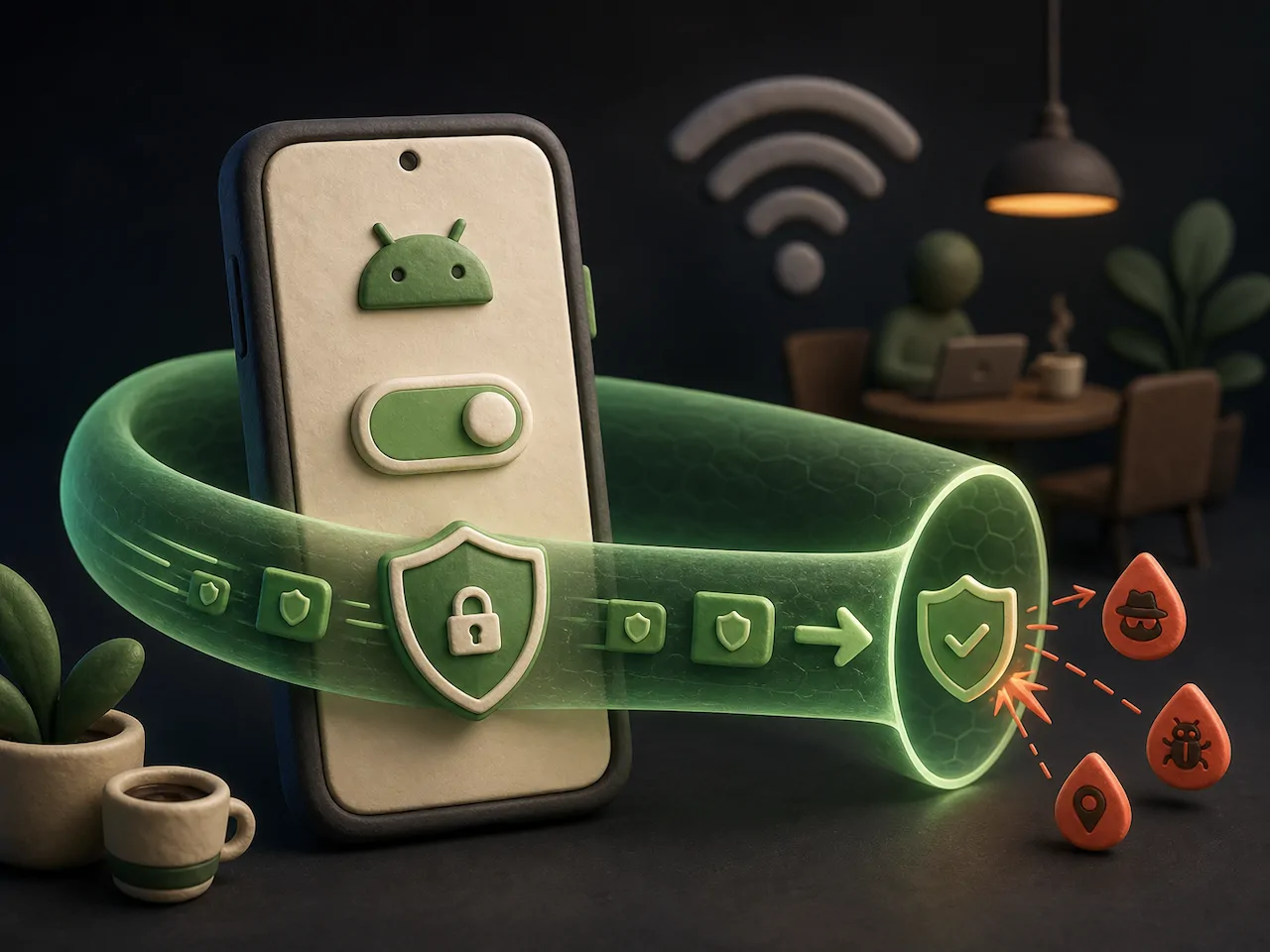
- Open Android Settings.
- Go to Network & internet, then VPN.
- Tap ProtonVPN.
- Turn on Always-on VPN.
- If your phone shows it, also enable Block connections without VPN.
If you enable Block connections without VPN, make sure ProtonVPN is working before you leave the settings screen. Otherwise you may temporarily lose internet access until you switch the setting off again.
Menu names can vary slightly by phone brand, but the path is usually close to this. If you use a Samsung, Pixel, or OnePlus device, the setting may sit in a slightly different place, but the idea is the same.
Fix common connection issues
Most ProtonVPN problems on Android come down to server load, protocol mismatch, battery optimization, or a weak network. Start with the simplest fix first.
| Problem | What to try |
|---|---|
| Stuck on connecting | Switch server, change protocol, then restart the app |
| Connected but no internet | Disconnect, reconnect, check date and time, and test another network |
| Slow speed | Use a nearby server, try WireGuard, and close background apps |
| VPN drops on mobile data | Turn off battery optimization and enable Always-on VPN |
| Can’t sign in | Check your account details and update the app |
A practical troubleshooting order
- Switch to a different server.
- Try another protocol.
- Update ProtonVPN and Android.
- Disable battery optimization for the app.
- Restart the phone if the problem keeps coming back.
If only one Wi-Fi network fails, the network may be blocking VPN traffic. Try mobile data or another Wi-Fi connection before changing too many settings.
What a good Android setup looks like
A solid ProtonVPN setup on Android is simple: Quick Connect works for everyday browsing, WireGuard handles most speed needs, and Always-on VPN protects you when you are away from home. Once those pieces are in place, you usually do not need to touch the app often.
FAQ
Is ProtonVPN free on Android?
Yes. You can use ProtonVPN on Android with a free plan, although server choice and some features may be limited.
How do I choose the fastest server?
Start with Quick Connect or pick a nearby server. The shorter the route, the better the speed usually is.
Why does ProtonVPN keep disconnecting on my phone?
Weak signal, battery optimization, or the wrong protocol is usually the reason. Try WireGuard, disable battery savings for the app, and turn on Always-on VPN.
Can I use ProtonVPN with mobile data?
Yes. ProtonVPN works on mobile data and Wi-Fi. If your phone limits background activity, allow the app to use unrestricted battery and data.
Do I need Always-on VPN?
It is not required, but it is a good idea if you often use public Wi-Fi or want ProtonVPN to stay active without manual reconnects.