
Table of contents
- What the Proton VPN Kill Switch Does
- Before You Enable It
- How to Turn On the Kill Switch in Proton VPN
- Windows
- macOS
- Linux
- Android
- iPhone and iPad
- Regular Kill Switch vs Permanent Kill Switch
- How to Test the Kill Switch Safely
- Common Problems and Fixes
- No internet after turning it on
- Hotel or cafe Wi-Fi login page will not open
- Printers, smart TVs, or local devices stop working
- The setting is missing
- The VPN reconnects but websites still fail
- Recommended Setup for Most Users
- FAQ
- Where is the kill switch in Proton VPN?
- What is the difference between Proton VPN Kill Switch and Permanent Kill Switch?
- Does the Proton VPN kill switch work if I close the app?
- Can I use Proton VPN without a kill switch?
- How do I know the kill switch is working?
The Proton VPN kill switch is a Proton VPN privacy setting that stops your device from sending traffic outside the encrypted VPN tunnel if the VPN connection drops. To turn it on, open the Proton VPN app and enable Kill Switch in the app settings or quick settings. On Android, use Android Always-on VPN and Block connections without VPN for Proton VPN. On iPhone and iPad, Proton VPN handles kill switch protection automatically, so there is usually no separate switch to enable.
The exact menu names can vary a little by app version and operating system, but the goal is the same: make sure your traffic is blocked whenever Proton VPN is not protecting it. The steps below follow Proton VPN support guidance for the official apps, not manual OpenVPN or WireGuard configuration files.
What the Proton VPN Kill Switch Does
A VPN kill switch is a leak-prevention feature. If your VPN tunnel fails because your Wi-Fi drops, your laptop wakes from sleep, you switch networks, or the VPN server becomes unreachable, the kill switch blocks internet traffic instead of letting your real IP address or DNS requests go out through your normal connection.
It does not make the VPN faster, and it does not replace good account security. Its job is narrower and very practical: prevent accidental exposure during the seconds or minutes when your VPN is not connected.
- It helps prevent your real IP address from appearing after an unexpected VPN disconnect.
- It reduces the chance of DNS leaks while the VPN app reconnects.
- It is useful on public Wi-Fi, mobile hotspots, hotel networks, and unstable connections.
- It can temporarily stop internet access, which is expected behavior when the VPN is down.
If privacy matters more than uninterrupted connectivity, leave the kill switch on. If you often need to sign in to captive portals or access local devices, learn how to disable it temporarily before you travel.
Before You Enable It
Use the latest official Proton VPN app for your platform. Kill switch behavior depends on the app and operating system, so outdated clients can have different menus or fewer options. Also make sure you know how to turn the setting off, especially before enabling a permanent kill switch mode.
- Update Proton VPN before changing privacy settings.
- Save any active uploads, calls, remote sessions, or cloud sync work before testing.
- Check whether you need local network access for printers, file sharing, smart TVs, or Chromecast-style devices.
- Disable Permanent Kill Switch before uninstalling Proton VPN or changing major network settings.
How to Turn On the Kill Switch in Proton VPN
Windows
- Open the Proton VPN app for Windows and sign in.
- Open Settings or the quick settings area in the main app window.
- Find Kill Switch.
- Enable the regular Kill Switch for everyday protection.
- If you want all internet access blocked unless Proton VPN is connected, enable Permanent Kill Switch instead.
- Connect to a Proton VPN server and confirm that the app shows an active VPN connection.
Use regular Kill Switch if you simply want protection from unexpected drops. Use Permanent Kill Switch only if you are comfortable having no internet until Proton VPN reconnects or you disable the setting.
macOS
- Open Proton VPN on your Mac.
- Go to the app settings or preferences.
- Look for the connection or privacy area.
- Turn on Kill Switch.
- Connect to a VPN server and leave the app running while you browse.
On macOS, Proton VPN focuses on the regular kill switch behavior. If your app version does not show a permanent mode, that is normal. Use the regular kill switch together with auto-connect if you want the VPN to recover quickly after network changes.
Linux
- Open the official Proton VPN Linux app.
- Go to Settings.
- Find Kill Switch.
- Choose regular Kill Switch for drop protection, or Permanent Kill Switch if your app offers it and you want stricter blocking.
- Connect to a Proton VPN server.
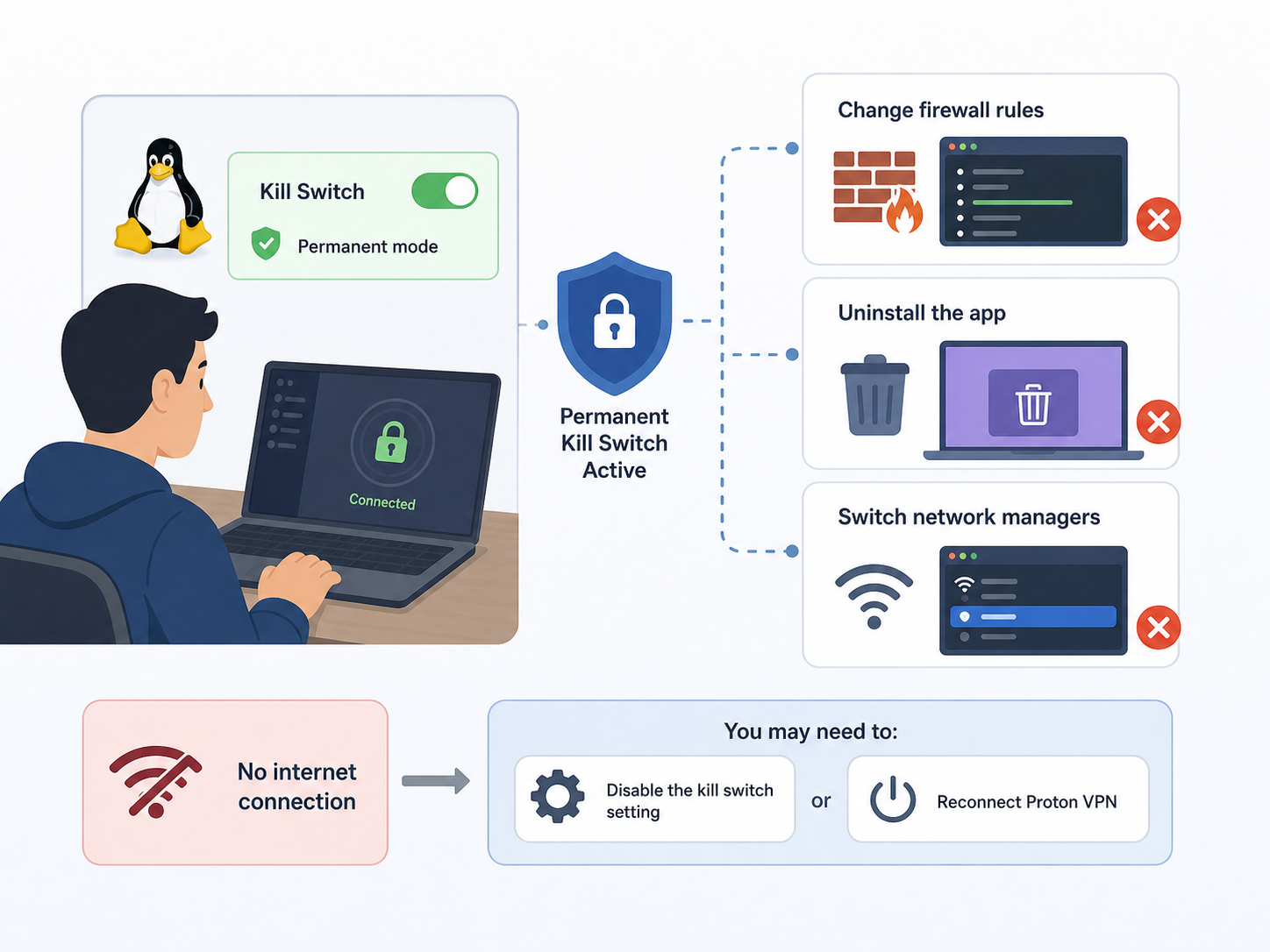
Linux users should be especially careful with permanent mode. If you change firewall rules, uninstall the app, or switch network managers while a permanent kill switch is active, you may need to disable the setting or reconnect Proton VPN before normal internet access returns.
Android
On Android, Proton VPN uses Android's built-in VPN controls for the strongest kill switch behavior. This is handled through system settings rather than only a Proton VPN toggle.
- Open Proton VPN and sign in.
- Open Proton VPN settings and look for Always-on VPN or Kill Switch instructions.
- Open Android Settings.
- Go to Network and internet, then VPN. On some phones this appears under Connections or More connection settings.
- Tap the settings icon next to Proton VPN.
- Turn on Always-on VPN.
- Turn on Block connections without VPN.
- Reconnect Proton VPN.
When Block connections without VPN is enabled, Android should stop apps from using the internet unless the Proton VPN tunnel is active. This is close to a permanent kill switch at the operating system level.
iPhone and iPad
On iOS and iPadOS, Proton VPN does not usually require you to switch on a separate kill switch. The app uses Apple's VPN framework to maintain the VPN connection and protect traffic during interruptions. Install the Proton VPN profile when prompted, keep the app updated, and connect normally.
If your iPhone or iPad shows no internet after a network change, open Proton VPN and reconnect. If you have removed the VPN profile, reinstall it through the Proton VPN app.
Regular Kill Switch vs Permanent Kill Switch
The regular and permanent modes are easy to confuse because both are designed to prevent leaks. The difference is how strict they are when Proton VPN is not connected.
| Mode | What it does | Best for | Trade-offs | Typical availability |
|---|---|---|---|---|
| Regular Kill Switch | Blocks traffic if the active VPN tunnel drops unexpectedly or while the app reconnects. | Everyday browsing, public Wi-Fi, streaming, travel, and general privacy. | Usually allows normal internet again when you intentionally disconnect the VPN. | Desktop Proton VPN apps, with mobile behavior handled differently by each operating system. |
| Permanent Kill Switch | Blocks internet traffic whenever Proton VPN is not connected, even if you intentionally disconnect. | High-privacy situations where you never want traffic outside the VPN. | Can leave you offline until you reconnect Proton VPN or turn the setting off. | Supported on Proton VPN desktop platforms such as Windows and Linux where the option is shown. |
| Android Always-on VPN with Block connections without VPN | Uses Android system controls to prevent apps from connecting outside Proton VPN. | Android users who want strong leak prevention across apps. | Captive portals and some local network features may not work until you adjust settings. | Android devices that support Always-on VPN and blocking without VPN. |
| iOS and iPadOS automatic protection | Uses the Proton VPN app and Apple's VPN framework to manage interruptions. | iPhone and iPad users who want protection without extra configuration. | There is generally no separate regular versus permanent choice to fine-tune. | Proton VPN for iOS and iPadOS. |
How to Test the Kill Switch Safely
Test the kill switch when you are not doing anything important. Do not test during a video call, online payment, remote desktop session, file upload, or anything that could be disrupted by a short loss of internet.
- Close sensitive apps and pause large downloads or sync tasks.
- Open Proton VPN and connect to a server.
- Check your public IP address in a browser and confirm it shows the VPN location, not your normal ISP location.
- Enable the kill switch mode you want to test.
- For regular Kill Switch, briefly disconnect Wi-Fi, switch networks, or put the device to sleep and wake it again. The browser should stop loading pages until Proton VPN reconnects.
- For Permanent Kill Switch, intentionally disconnect Proton VPN. Your browser should fail to load pages until you reconnect Proton VPN or disable permanent mode.
- After reconnecting, check your public IP address again. It should still show the VPN address, not your real network address.
A safe test does not require torrenting, forcing the app to crash, or exposing personal accounts. You only need to confirm that traffic stops when the VPN is unavailable and resumes after the VPN is active again.
Common Problems and Fixes
No internet after turning it on
This usually means the kill switch is doing its job. Open Proton VPN and connect to a server. If you enabled Permanent Kill Switch and do not want strict blocking, turn it off in the app settings.
Hotel or cafe Wi-Fi login page will not open
Captive portals often require a direct connection before the VPN can connect. Temporarily disable Permanent Kill Switch, sign in to the Wi-Fi portal, connect Proton VPN, then turn the kill switch back on.
Printers, smart TVs, or local devices stop working
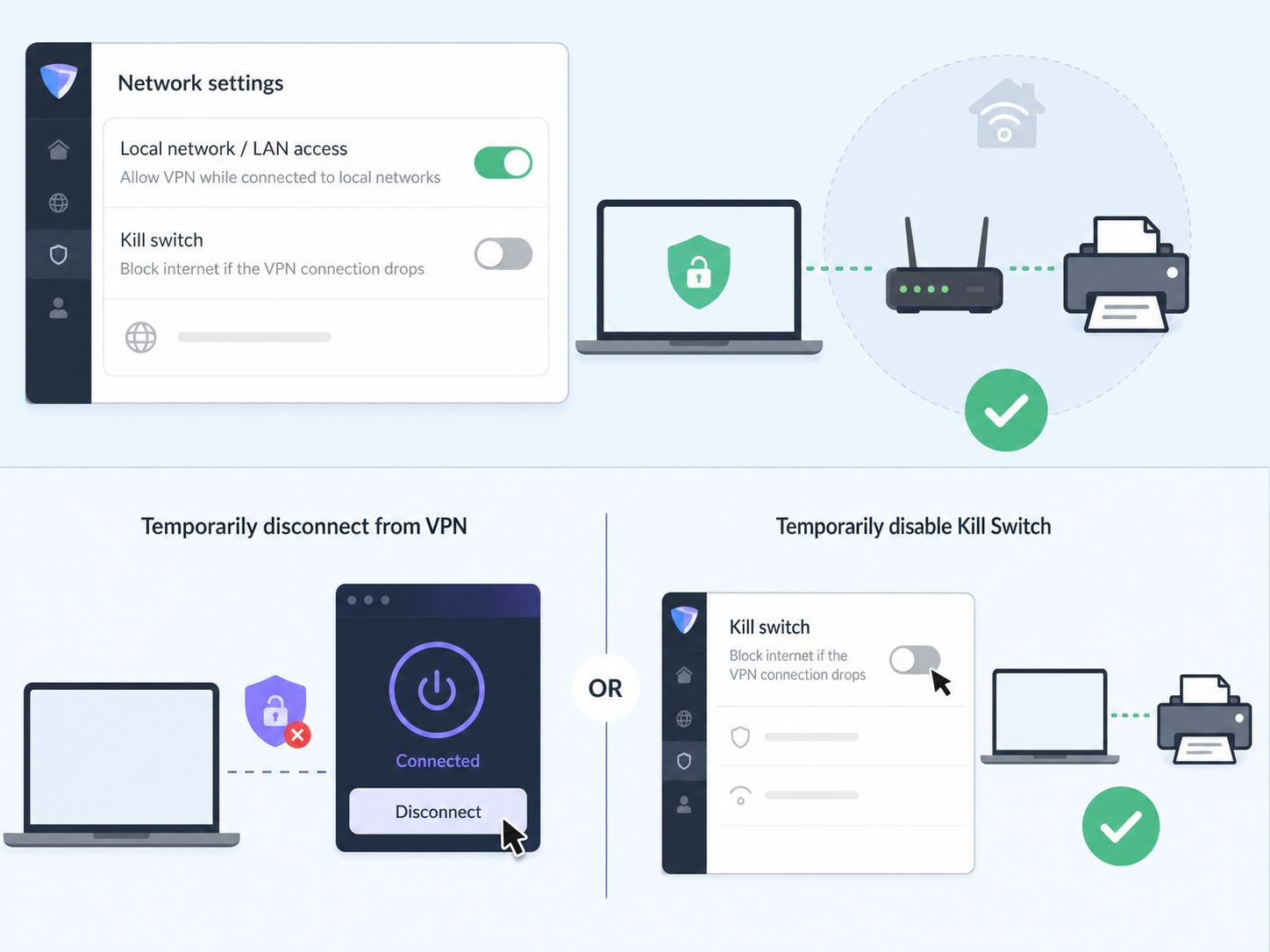
Some kill switch and VPN settings can block local network discovery. Check Proton VPN for a local network or LAN access option if available on your platform. If you only need the printer for a moment, disconnect from the VPN or disable the kill switch temporarily, then re-enable it afterward.
The setting is missing
Update Proton VPN first. If the option still is not visible, your platform may use a different method. Android uses system Always-on VPN settings, while iOS and iPadOS generally handle kill switch protection automatically.
The VPN reconnects but websites still fail
Try switching to another Proton VPN server, changing networks, or restarting the Proton VPN app. If you use custom DNS, firewall tools, or another security app, temporarily disable those extras to check whether they are interfering.
Recommended Setup for Most Users
For most people, the best setup is regular Kill Switch plus auto-connect. This gives practical leak protection without making your device feel broken every time you intentionally disconnect the VPN.
- Use regular Kill Switch for daily browsing and public Wi-Fi.
- Use Permanent Kill Switch only when you need strict no-VPN, no-internet protection.
- On Android, enable Always-on VPN and Block connections without VPN if privacy is the priority.
- Keep Proton VPN updated so you get the latest platform behavior and fixes.
- Before travel, learn how to disable the kill switch briefly for captive portal sign-ins.
The main point is simple: turn the Proton VPN kill switch on before you need it. A dropped VPN connection is usually brief, but it only takes a moment for an app or browser tab to reconnect outside the tunnel.
FAQ
Where is the kill switch in Proton VPN?
In the desktop apps, look in Proton VPN Settings or the quick settings area for Kill Switch. On Android, use the system VPN settings for Always-on VPN and Block connections without VPN. On iPhone and iPad, there is usually no separate switch because Proton VPN handles it automatically.
What is the difference between Proton VPN Kill Switch and Permanent Kill Switch?
Regular Kill Switch protects you when the VPN connection drops unexpectedly. Permanent Kill Switch is stricter and blocks internet whenever Proton VPN is not connected, including when you disconnect on purpose.
Does the Proton VPN kill switch work if I close the app?
Regular kill switch behavior depends on the app staying active and managing the VPN connection. Permanent Kill Switch, where supported, is designed to keep blocking traffic unless Proton VPN is connected or the setting is disabled.
Can I use Proton VPN without a kill switch?
Yes, but it is less private. Without a VPN kill switch, your device may reconnect through your normal internet connection if the VPN drops, which can expose your real IP address or DNS traffic.
How do I know the kill switch is working?
Connect Proton VPN, enable the kill switch, then safely interrupt the VPN by switching networks or disconnecting the VPN. Your internet should stop until Proton VPN reconnects or until you disable the strict blocking mode.