
Table of contents
- Quick checklist before you change anything
- Common causes and the right fix
- Fix incorrect Proton account credentials
- Handle two-factor authentication problems
- When your 2FA code is rejected
- When you lost your authenticator device
- Check for network blocking or connection restrictions
- Update or reinstall the Proton VPN app
- Recommended app troubleshooting steps
- Review your Proton account status
- Reset your Proton account password safely
- Before you reset
- After you reset
- When to contact Proton support
- Practical order to troubleshoot
- FAQ
- Why does Proton VPN say my username or password is wrong?
- Can I sign in to Proton VPN with my Proton Mail account?
- What should I do if my Proton VPN 2FA code does not work?
- Why can I log in on mobile data but not on Wi-Fi?
- When should I stop troubleshooting and contact support?
A Proton VPN login problem usually comes down to your Proton account credentials, two-factor authentication, a network block, an outdated app, or an account restriction. Start by checking that you are signing in with the correct Proton account email or username and password, then confirm that your device can reach Proton services, update the app, and reset your password only if the credentials are genuinely not working.
Quick checklist before you change anything
Before you spend time reinstalling the app, run through these quick checks. They solve many VPN sign in error cases without touching advanced settings.
- Make sure you are using your Proton account credentials, not the separate OpenVPN or IKEv2 credentials used for manual VPN setup.
- Check that Caps Lock is off and that your password manager is filling the right Proton account.
- Try signing in at Proton Account in a browser to confirm whether the issue is account-wide or only inside the VPN app.
- Switch networks, for example from office Wi-Fi to mobile data, to rule out local blocking.
- Update Proton VPN from the official app store or Proton website, then restart the app and your device.
Common causes and the right fix
| Likely cause | What you may see | Best first fix |
|---|---|---|
| Incorrect credentials | Invalid username or password, repeated failed sign-in attempts | Confirm the Proton account email or username and carefully re-enter the password |
| Two-factor authentication issue | 2FA code rejected, recovery code needed, login loop after password entry | Check device time sync, use a fresh code, or use a saved recovery code |
| Network blocking | App cannot reach login servers, connection times out, works on another network | Try mobile data, another Wi-Fi network, or a less restrictive network |
| Outdated app | Unexpected error, blank sign-in page, app crashes during login | Install the latest Proton VPN version and restart the device |
| Account status problem | Account disabled, payment or plan issue, access denied | Review your Proton account status or contact Proton support |
Fix incorrect Proton account credentials
Proton VPN uses your Proton account to sign in. If you also use Proton Mail, Proton Drive, or another Proton service, it is the same account. The most common mistake is using manual VPN credentials in the app. Those credentials are for OpenVPN or IKEv2 manual configurations, not for normal app login.
- Enter your Proton account email address or username manually instead of relying on autofill.
- Type the password slowly, especially if you use special characters or a non-US keyboard layout.
- If you use a password manager, open the saved entry and confirm it belongs to the same Proton account.
- Try signing in through a browser. If the browser login fails too, the issue is probably your account credentials rather than the VPN app.
- If you recently changed your password, sign out of older Proton sessions and sign back in with the new password.
Important: Do not keep trying random passwords. Too many failed attempts can temporarily slow down or block additional login attempts for security reasons.
Handle two-factor authentication problems
If your Proton account has two-factor authentication enabled, the password alone is not enough. A VPN sign in error after the password step often points to a 2FA problem rather than a VPN connection problem.
When your 2FA code is rejected
- Check that the time and time zone on your phone or authenticator device are set automatically.
- Wait for the authenticator app to generate a new code, then enter that fresh code immediately.
- Make sure you are using the Proton entry in your authenticator app, not a code for another account.
- If you saved Proton recovery codes, use one only when you cannot access the normal 2FA code.
When you lost your authenticator device
Use a recovery code if you saved one when setting up 2FA. If you do not have a working authenticator or recovery code, you will likely need Proton support to help verify account ownership. Be ready to provide details that prove the account is yours, but never share your password or 2FA codes with anyone.
Check for network blocking or connection restrictions
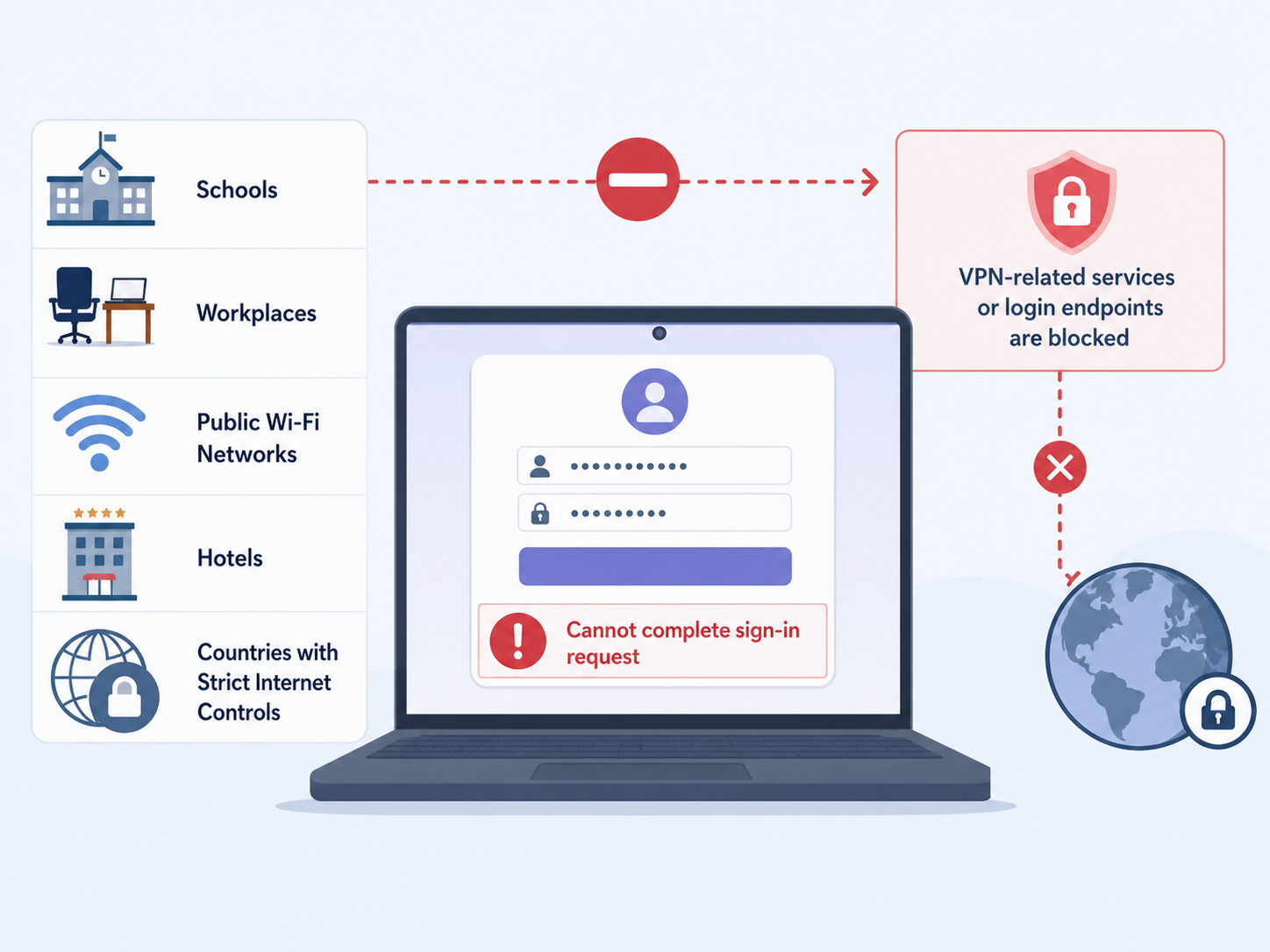
Some schools, workplaces, public Wi-Fi networks, hotels, and countries with strict internet controls may block VPN-related services or Proton login endpoints. In this case, your credentials may be correct, but the app cannot complete the sign-in request.
- Turn off Wi-Fi and try signing in over mobile data.
- If mobile data works, the original network is probably blocking the login or VPN traffic.
- Restart your router if you are on a home network and other services also behave strangely.
- Disable custom DNS, filtering apps, firewall rules, or parental controls temporarily to test whether they are interfering.
- If you are on a managed work or school device, ask the administrator whether VPN apps or Proton services are restricted.
If Proton VPN opens but cannot sign in only on one network, changing your password will not help. Focus on the network path instead.
Update or reinstall the Proton VPN app
An outdated app can cause login loops, blank authentication screens, certificate errors, or unexplained sign-in failures. Proton updates its apps to fix bugs, improve compatibility, and keep authentication working with current account systems.
Recommended app troubleshooting steps
- Update Proton VPN from the official source for your device.
- Restart the app completely. On mobile, swipe it away from recent apps before reopening it.
- Restart the device to clear stuck network or authentication processes.
- If the app still fails, sign out, clear the app cache where your operating system allows it, and sign in again.
- Reinstall Proton VPN only after you have confirmed your account works in a browser.
On desktop, also check that your operating system is reasonably up to date. Old system components can interfere with secure login windows and network certificates.
Review your Proton account status
Sometimes the problem is not the app or your password. Your Proton account status can affect whether you can sign in or use specific VPN features.
- If your paid plan expired, you may lose access to premium VPN servers and features, but you should still be able to use the account if it remains active.
- If there is a payment issue, update your billing details through your Proton account.
- If the account was disabled for security, abuse, or policy reasons, app troubleshooting will not fix it.
- If you recently created the account, check your email for any verification or security notice from Proton.
If your account shows a restriction or you cannot access the Proton account dashboard, contact Proton support rather than repeatedly attempting to sign in.
Reset your Proton account password safely
Reset your password if you are sure the credentials are wrong, your password manager entry is outdated, or you cannot sign in to any Proton service. Use Proton's official password reset flow and follow the prompts carefully.
Before you reset
- Check whether you have account recovery methods enabled, such as a recovery email, recovery phone, or recovery phrase where available.
- Understand that Proton uses end-to-end encryption for some services. A password reset may affect access to encrypted data in services such as Proton Mail or Drive if recovery is not properly configured.
- For Proton VPN alone, the main goal is restoring account access, but the Proton account may also protect other Proton products you use.
After you reset
- Sign in to your Proton account in a browser first.
- Update the saved password in your password manager.
- Open Proton VPN and sign in with the new password.
- If 2FA is enabled, enter the current authenticator code after the password step.
- Review active sessions and security settings once you regain access.
When to contact Proton support
Contact Proton support when the issue looks account-specific, security-related, or impossible to solve from your device. Support is the right next step if you see an account disabled message, cannot access 2FA, cannot complete password reset, or receive the same error across multiple devices and networks.
To speed up the process, prepare the following details before you submit a request:

- Your Proton account username or email address.
- The device and operating system you are using.
- The Proton VPN app version, if you can see it.
- The exact error message, copied as text or described clearly.
- What you already tried, such as password reset, mobile data, app update, or 2FA recovery code.
Never send your Proton password, full 2FA code, or recovery phrase in a support message. Proton support does not need those secrets to investigate a login problem.
Practical order to troubleshoot
If you want the shortest route, use this order. It separates account problems from device and network problems quickly.
- Confirm you are using Proton account credentials, not manual VPN credentials.
- Try signing in to Proton Account in a browser.
- If browser sign-in fails, fix the password or 2FA issue first.
- If browser sign-in works, update or reinstall the Proton VPN app.
- If the app still fails, test another network such as mobile data.
- If the same error continues on different devices and networks, contact Proton support.
FAQ
Why does Proton VPN say my username or password is wrong?
It usually means you entered the wrong Proton account credentials, your password manager filled an old password, or you used manual OpenVPN/IKEv2 credentials instead of your Proton account login.
Can I sign in to Proton VPN with my Proton Mail account?
Yes. Proton VPN uses your Proton account. If you use Proton Mail, that same account can be used to sign in to Proton VPN, depending on your plan and account status.
What should I do if my Proton VPN 2FA code does not work?
Set your phone time to automatic, use the newest authenticator code, and confirm you are selecting the correct Proton entry. If you lost access to the authenticator, use a saved recovery code or contact Proton support.
Why can I log in on mobile data but not on Wi-Fi?
The Wi-Fi network may be blocking Proton services, VPN traffic, or authentication requests. This is common on school, workplace, hotel, or public networks with strict filtering.
When should I stop troubleshooting and contact support?
Contact Proton support if your account is disabled, password reset does not work, 2FA recovery is unavailable, or the same login error appears across multiple devices and networks.