
Table of contents
- Quick Diagnosis: What the Error Usually Means
- Step-by-Step Proton VPN Troubleshooting
- 1. Confirm Your Internet Works Without the VPN
- 2. Switch Servers and Check Proton VPN Status
- 3. Update the Proton VPN App and Your Device
- 4. Change the VPN Protocol
- 5. Review Firewall, Antivirus, and Security App Settings
- 6. Check DNS Settings and Network Configuration
- 7. Check Account, Plan, and Device Limits
- 8. Consider Network Restrictions on Public or Managed Wi-Fi
- When to Reinstall Proton VPN
- What to Send Support If Nothing Works
- Practical Troubleshooting Order
- Conclusion
- FAQ
- Why does Proton VPN keep saying VPN connection failed?
- Why does Proton VPN work on mobile data but not on Wi-Fi?
- Which Proton VPN protocol should I use if it will not connect?
- Can antivirus or firewall software stop Proton VPN from connecting?
- Why is my internet not working after disconnecting Proton VPN?
Proton VPN not connecting usually means the app cannot build a secure encrypted tunnel between your device and a Proton VPN server. In practice, the failure is most often caused by a broken base internet connection, a server or protocol issue, outdated app files, firewall or antivirus blocking, DNS problems, restrictive Wi-Fi, or an account limit. Start by checking whether the internet works with the VPN off, then move through server, app, protocol, firewall, DNS, and account checks in that order.
If you see a VPN connection failed message, avoid changing everything at once. A simple, ordered approach makes it much easier to find the real cause and avoid creating a second problem while trying to fix the first one.
Quick Diagnosis: What the Error Usually Means
| What you notice | Likely cause | First thing to try |
|---|---|---|
| Websites do not load even with Proton VPN off | Your internet connection is down or unstable | Reconnect Wi-Fi, restart the router, or test mobile data |
| Only one Proton server fails | That server is busy, under maintenance, or temporarily unreachable | Choose another nearby server or use the fastest server option |
| Connection fails on school, hotel, office, or public Wi-Fi | The network may block VPN traffic | Try Smart protocol, Stealth where available, or a TCP-based protocol |
| The app connects, but there is no internet | DNS conflict, kill switch behavior, or firewall filtering | Disable custom DNS temporarily and review firewall rules |
| You cannot connect after a password, plan, or device change | Session, subscription, or connection limit issue | Sign out and back in, then check your plan and active devices |
Step-by-Step Proton VPN Troubleshooting
1. Confirm Your Internet Works Without the VPN
This sounds obvious, but it is the fastest way to separate a Proton VPN issue from a normal network issue. Turn Proton VPN off completely, then open a few different websites or apps. If nothing loads, Proton VPN is not the root cause yet.
- Disconnect Proton VPN and test a normal website in your browser.
- Try another network, such as mobile data or a different Wi-Fi connection.
- Restart your router if the whole network feels slow or unstable.
- If you are on hotel, airport, cafe, or campus Wi-Fi, open a browser and complete any login or captive portal page before starting the VPN.
- Check whether other devices on the same network can browse normally.
If the internet only fails when Proton VPN is on, continue with the next steps. If the internet fails all the time, fix the local connection first.
2. Switch Servers and Check Proton VPN Status
A single server can become overloaded, unavailable, or difficult to reach from your network. This does not mean Proton VPN is broken. It often means your device needs a cleaner route to a different server.
- Use the fastest or quick connect option in the Proton VPN app.
- Try a nearby country instead of a distant location, especially if speed is also poor.
- If you use Secure Core, turn it off temporarily to test a simpler route.
- If you use a free plan, remember that server options are more limited and may be more affected by load.
- Check Proton VPN service status through Proton’s official status information if multiple servers fail at the same time.
If changing servers fixes the problem, the issue was probably server load, routing, or temporary maintenance rather than your device.
3. Update the Proton VPN App and Your Device
VPN apps depend on network drivers, system permissions, and security components. An outdated app can fail after an operating system update, and an outdated operating system can also interfere with newer VPN features.
- Update Proton VPN from the official Proton source or your device’s app store.
- Install pending operating system updates, especially security and network updates.
- Restart your device after updating, not just the app.
- Open Proton VPN again and sign in fresh if the app asks for authentication.
Do not skip the restart. On Windows and macOS in particular, VPN adapters and network extensions may not reload cleanly until the system restarts.
4. Change the VPN Protocol
Protocol choice is one of the most common fixes when Proton VPN will not connect. Some networks allow fast VPN traffic, while others block or throttle it. Proton VPN’s Smart protocol is usually the best starting point because it can choose a suitable option automatically, but manual changes can help when a network is strict.
| Protocol option | Best for | What to know |
|---|---|---|
| Smart | Most users and normal home networks | Lets the app choose a protocol automatically. Use this first unless you have a specific reason not to. |
| WireGuard UDP | Speed on open networks | Often fast and efficient, but some public or work networks may block UDP traffic. |
| WireGuard TCP | Restrictive networks where UDP fails | Can be more reliable than UDP on some networks, though it may be slower. |
| OpenVPN TCP | Compatibility and difficult networks | A good fallback when newer protocols fail or when you keep seeing VPN connection failed errors. |
| Stealth | Networks that try to block VPN usage | Use where available if you are on school, office, hotel, or country-level restricted networks. |
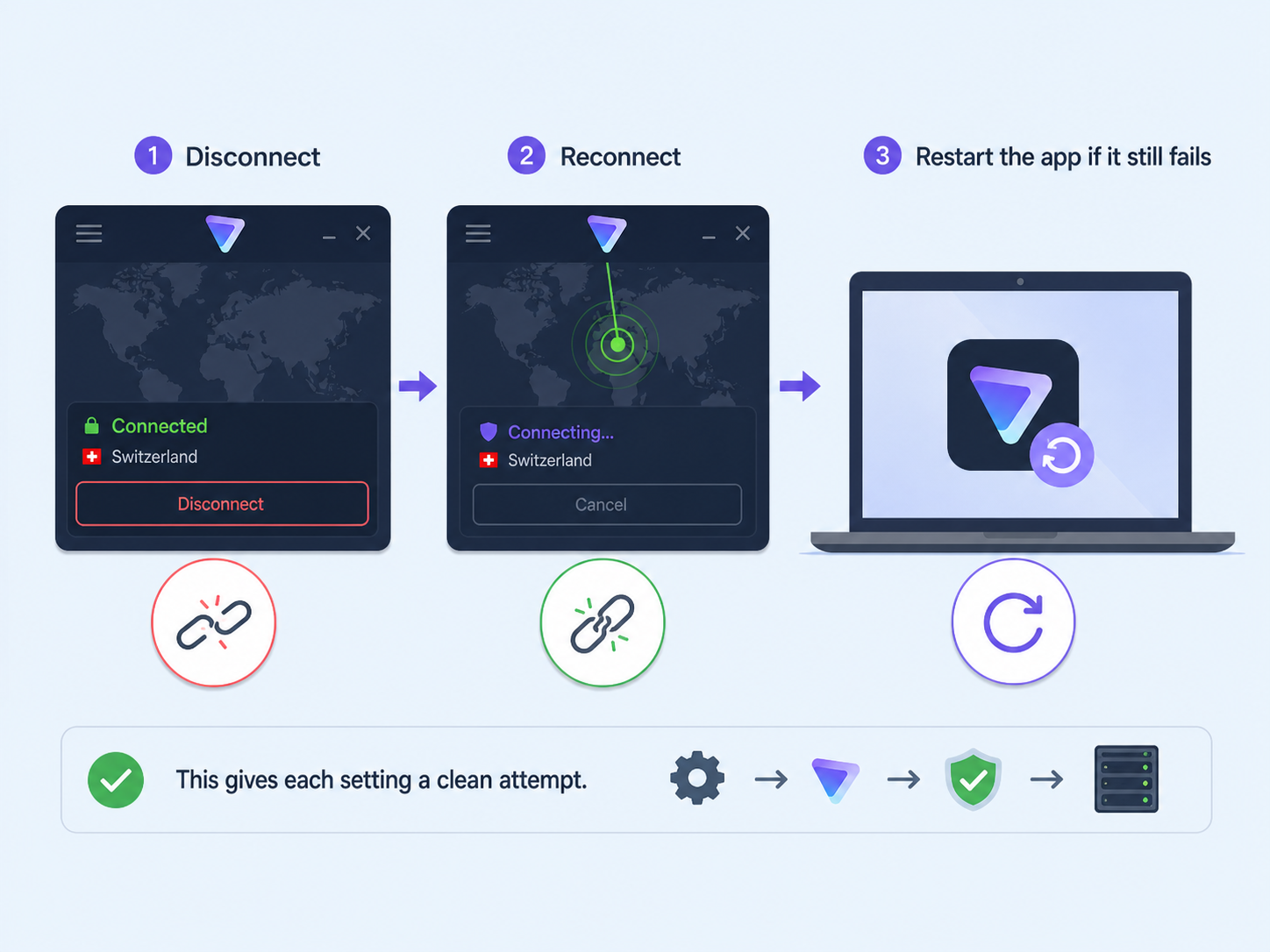
After changing the protocol, disconnect and reconnect. If the app still fails, restart the app before testing the next protocol. That gives each setting a clean attempt.
5. Review Firewall, Antivirus, and Security App Settings
Firewalls and antivirus tools can block VPN tunnels because they inspect network traffic aggressively. This is more likely after a security software update or when using a corporate device with managed rules.
- Allow Proton VPN in your firewall or antivirus network settings.
- Temporarily pause web protection or traffic inspection only long enough to test, then turn it back on.
- Remove old VPN apps, proxy tools, or network filters you no longer use.
- On macOS, make sure Proton VPN has permission to add VPN configurations or network extensions when prompted.
- On mobile, disable battery restrictions for Proton VPN if the connection drops during startup.
Security note: do not leave your firewall or antivirus disabled as a permanent workaround. If Proton VPN connects only when security software is paused, create a proper exception for the app or ask the security vendor how to allow VPN traffic safely.
6. Check DNS Settings and Network Configuration
DNS problems can make it look like Proton VPN connected but the internet is broken. DNS translates website names into IP addresses. If your device keeps using a custom DNS, a router filter, or a broken cached record, pages may fail even though the VPN tunnel exists.
- Turn off custom DNS temporarily and use automatic DNS settings to test.
- If you use a private DNS feature on Android, disable it briefly and reconnect Proton VPN.
- If you use DNS filtering on your router, test from another network or disable the filter for a few minutes.
- On Windows, open Command Prompt as administrator and run ipconfig /flushdns, then reconnect.
- Restart the device if DNS behavior remains inconsistent after changing settings.
When Proton VPN is connected, the app is designed to protect DNS requests through the VPN. Custom DNS tools can be useful in some setups, but they can also conflict with VPN routing if they are configured incorrectly.
7. Check Account, Plan, and Device Limits
Sometimes Proton VPN troubleshooting ends up being an account issue rather than a network issue. If the app cannot authenticate your session or your plan limits are reached, the connection may fail before the tunnel is created.
- Sign out of Proton VPN and sign back in with the correct Proton account.
- Check whether your subscription is active if you are trying to use paid servers or paid features.
- Disconnect Proton VPN on another device if you may have reached your simultaneous connection limit.
- If you recently changed your password or enabled two-factor authentication, sign in again on every device.
- Make sure you are not trying to use a server type or location that is not included with your plan.
Free accounts can still use Proton VPN, but free server choices and availability are more limited than paid plans. If a specific location is unavailable, try the fastest free connection option shown in the app.
8. Consider Network Restrictions on Public or Managed Wi-Fi
Public and managed networks can be unusually strict. Schools, workplaces, hotels, and some public hotspots may block VPN ports, UDP traffic, unknown encrypted traffic, or all non-approved VPN services.
- Complete the Wi-Fi login page before opening Proton VPN.
- Try Stealth if your Proton VPN app and platform support it.
- Try OpenVPN TCP or WireGuard TCP if UDP-based connections fail.
- Test mobile data to confirm whether the Wi-Fi network is the problem.
- If you are using a work or school device, check whether the organization blocks personal VPN apps by policy.
If Proton VPN works on mobile data but not on one Wi-Fi network, the Wi-Fi network is the likely cause. In that case, protocol changes are usually more useful than reinstalling the app.
When to Reinstall Proton VPN
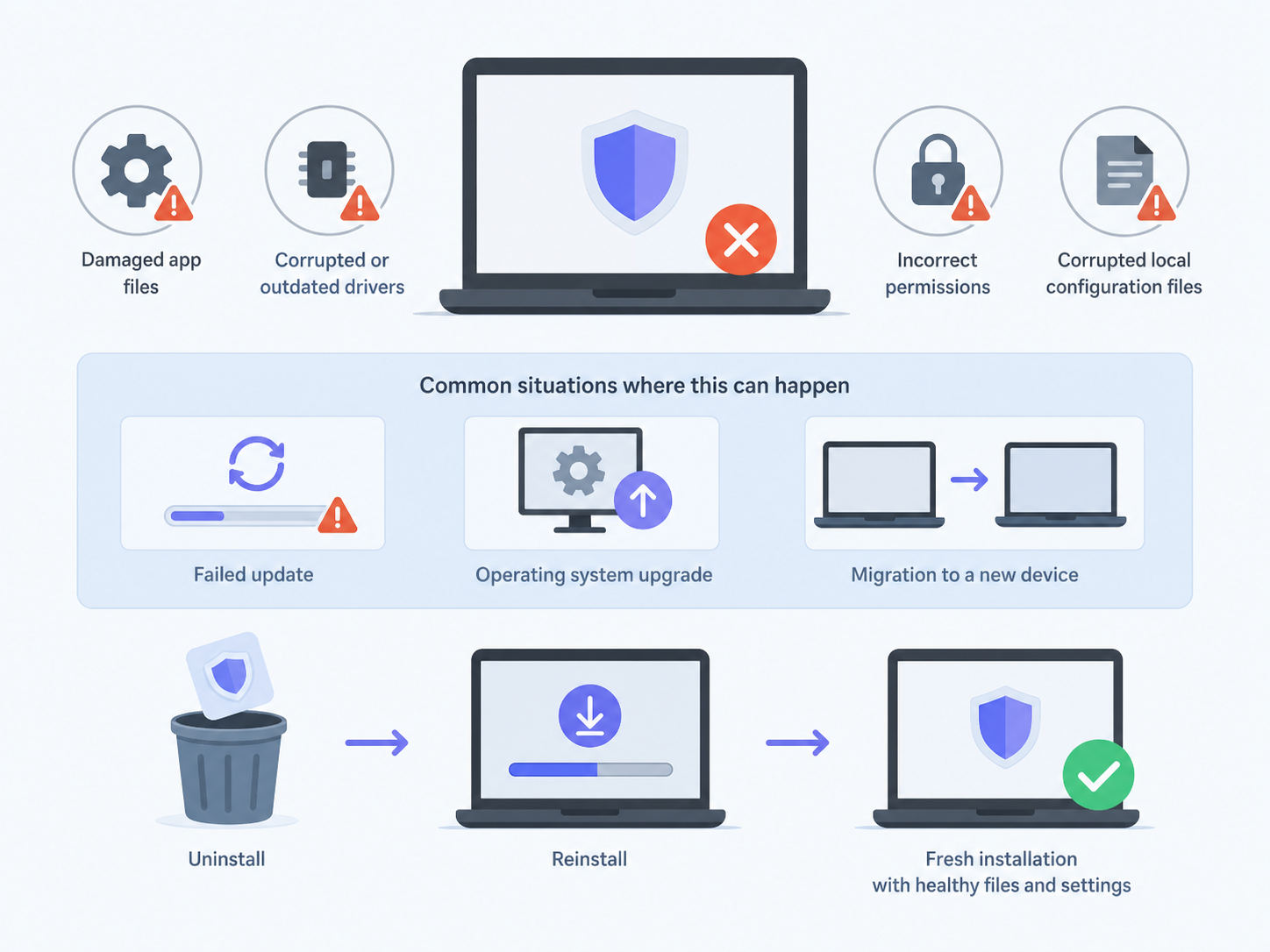
Reinstalling should not be the first fix, but it is useful if the app, drivers, permissions, or local configuration files are damaged. This is especially relevant after a failed update, operating system upgrade, or migration to a new device.
- Sign out of Proton VPN.
- Quit the app completely.
- Uninstall Proton VPN using your system’s normal uninstall method.
- Restart your device.
- Install the latest Proton VPN app from the official source.
- Sign in and test with Smart protocol and the fastest server option first.
If reinstalling helps, the original issue was probably a damaged local installation or outdated networking component.
What to Send Support If Nothing Works
If you have tried the steps above and Proton VPN still will not connect, collect the right details before contacting support. Good information shortens the back-and-forth and helps support identify whether the problem is your device, your network, your account, or a wider service issue.
- Your device type and operating system version.
- Your Proton VPN app version.
- The server or country you tried to connect to.
- The protocol selected when the failure happened.
- The exact error message, such as VPN connection failed.
- Whether the issue happens on every network or only one Wi-Fi network.
- App logs, if the Proton VPN app offers an export or report option on your platform.
Also mention any firewall, antivirus, router filtering, custom DNS, or corporate device management software in use. Those details often explain connection failures that are hard to see from the app alone.
Practical Troubleshooting Order
If you want the shortest path, use this order: internet first, server second, app update third, protocol fourth, firewall fifth, DNS sixth, account seventh. That sequence starts with the most common and easiest causes before moving into deeper configuration issues.
- Test internet access with Proton VPN off.
- Try another Proton VPN server or the fastest server option.
- Update the app and restart the device.
- Switch protocol to Smart, then TCP or Stealth where available.
- Check firewall, antivirus, and old VPN software conflicts.
- Reset custom DNS or flush DNS cache.
- Confirm account status, plan access, and device limits.
- Reinstall the app only if the earlier steps do not help.
Conclusion
Most Proton VPN not connecting problems are fixable without advanced networking knowledge. The key is to test one layer at a time: internet access, server availability, app health, protocol compatibility, security software, DNS, and account status. If Proton VPN works on another network or after a protocol change, you have already narrowed the issue. If it fails everywhere after updates and reinstalling, gather logs and contact Proton support with the details listed above.
FAQ
Why does Proton VPN keep saying VPN connection failed?
It usually means the app cannot establish a secure tunnel. Common causes include unstable internet, a blocked protocol, a busy server, firewall interference, DNS conflict, or an account authentication issue.
Why does Proton VPN work on mobile data but not on Wi-Fi?
That usually points to the Wi-Fi network. Public, school, office, hotel, or restricted networks may block VPN traffic. Try Stealth, WireGuard TCP, OpenVPN TCP, or connect through another network.
Which Proton VPN protocol should I use if it will not connect?
Start with Smart. If that fails, try a TCP-based option such as WireGuard TCP or OpenVPN TCP. On networks that actively block VPNs, use Stealth if it is available in your app.
Can antivirus or firewall software stop Proton VPN from connecting?
Yes. Security software can block VPN adapters, encrypted tunnels, or network changes. Add Proton VPN as an allowed app instead of leaving your firewall or antivirus disabled.
Why is my internet not working after disconnecting Proton VPN?
Check whether kill switch or permanent kill switch is enabled, then review DNS settings and restart the device. If the issue started after a failed connection, resetting DNS and reopening the app often helps.