
Table of contents
- Before You Start
- How to Install Proton VPN from the App Store
- Sign In or Create a Proton Account
- Allow the iOS VPN Permission Prompt
- Choose the Right Proton VPN Server
- How to Connect to a Server
- Set Up Auto-Connect on Proton VPN iOS
- How to Confirm Proton VPN Is Working
- What to Do If Proton VPN Will Not Connect on iPhone
- Step-by-Step Troubleshooting Checklist
- Practical Tips for Better Speed and Stability
- Conclusion
- FAQ
- Is Proton VPN free on iPhone?
- Why does my iPhone ask Proton VPN to add VPN configurations?
- How do I know Proton VPN is connected on iOS?
- Why will Proton VPN not connect on my iPhone?
- Should I use Fastest or choose a country manually?
To set up Proton VPN iPhone, install the official Proton VPN app from the App Store, sign in with your Proton account, allow iOS to add the VPN configuration, choose a server, and tap Connect. Once the app shows Connected and the VPN indicator appears in iOS, your iPhone traffic is routed through Proton VPN. The whole setup usually takes only a few minutes, but the permission prompt, server choice, and auto-connect settings are worth understanding so the VPN works reliably every day.
Before You Start
Proton VPN for iOS is designed for normal iPhone use: browsing, messaging, public Wi-Fi, travel, and general privacy protection. You do not need to manually create VPN profiles if you use the official app.
- Use the official Proton VPN app published by Proton AG in the App Store.
- Have a Proton account ready, or create one during sign-in.
- Make sure your iPhone has a working Wi-Fi or mobile data connection before connecting to the VPN.
- Keep iOS and the Proton VPN app updated, especially if you see repeated connection errors.
- Remember that some server locations, Secure Core, NetShield, or streaming-optimized servers may require a paid Proton VPN plan.
Avoid lookalike VPN apps. The official app name and developer matter because a VPN can see connection metadata and controls how your traffic is routed.
How to Install Proton VPN from the App Store
- Open the App Store on your iPhone.
- Search for Proton VPN.
- Choose the app published by Proton AG.
- Tap Get, then confirm with Face ID, Touch ID, or your Apple ID password.
- Wait for the app to install, then tap Open.
If you cannot find the app, check that your Apple ID region supports the App Store listing and that your iPhone is running a supported iOS version. The App Store page always shows the current device requirements.
Sign In or Create a Proton Account
When the app opens, sign in with your existing Proton account. If you do not have one, choose the account creation option in the app and follow the prompts. A free Proton VPN account is enough for basic VPN protection, though paid plans offer more locations and advanced features.
If sign-in fails, confirm your email address and password, check whether two-factor authentication is required, and make sure you are not blocking Proton domains with another VPN, firewall, or restricted network.
Allow the iOS VPN Permission Prompt
The first time you connect, iOS asks for permission to add a VPN configuration. This is normal and required. Proton VPN cannot create a secure tunnel until iOS allows the VPN profile.
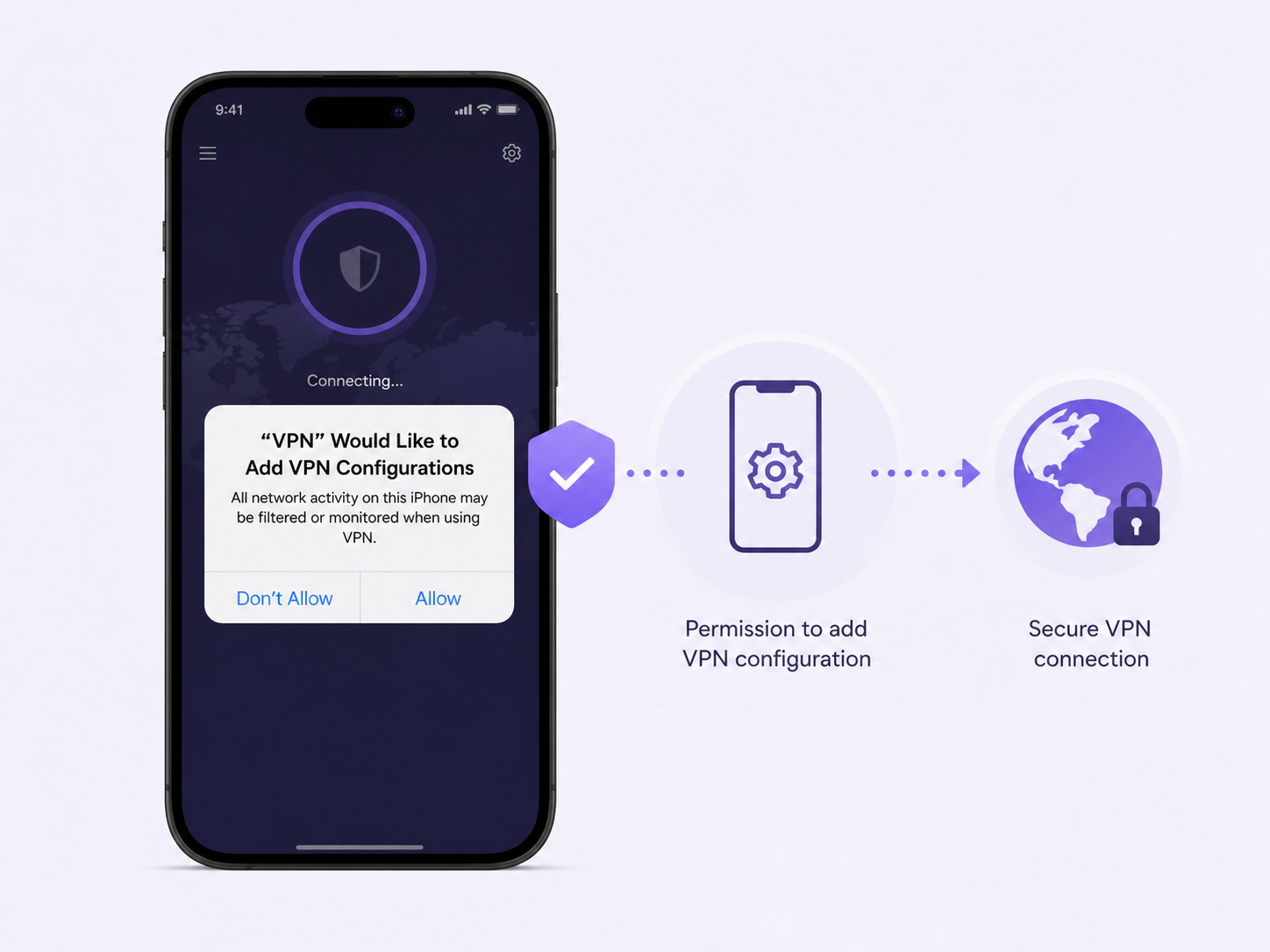
- Tap Connect or Quick Connect in the Proton VPN app.
- When iOS asks to add VPN configurations, tap Allow.
- Confirm with your iPhone passcode, Face ID, or Touch ID if prompted.
- Return to Proton VPN and wait for the connection status to change to Connected.
If you tap Do Not Allow, the VPN will not connect. Reopen the Proton VPN app and try connecting again. If the permission prompt does not return, reinstalling the app or removing the Proton VPN configuration from iOS settings usually resets the prompt.
Choose the Right Proton VPN Server
For most people, the fastest and simplest option is Quick Connect or Fastest. Proton VPN will pick a nearby server with a good connection. If you need an IP address from a specific country, choose that country manually from the server list.
| Server choice | Best for | What to know |
|---|---|---|
| Quick Connect or Fastest | Daily browsing, messaging, public Wi-Fi | Usually gives the best balance of speed and stability. |
| Specific country | Accessing region-specific websites or services | Pick a country close to you for better speed when location is not important. |
| Specific city or server | More control over latency or IP location | Availability depends on Proton's server network and your plan. |
| Secure Core | Extra protection against network-based attacks | Routes traffic through hardened Proton servers first, but may reduce speed. |
| Plus or streaming servers | Streaming, faster routes, premium locations | Requires a paid plan and may be labeled inside the app. |
How to Connect to a Server
- Open Proton VPN.
- Tap Quick Connect for the recommended server, or browse the country list.
- Tap the country, city, or server you want to use.
- Wait until the app shows Connected.
- Check for the VPN indicator in the iPhone status area or Control Center.
If a server feels slow, disconnect and choose another nearby server. Distance, server load, Wi-Fi quality, and mobile network strength all affect performance.
Set Up Auto-Connect on Proton VPN iOS
Auto-connect helps reduce the chance that you forget to turn on the VPN. In the Proton VPN iOS app, open Settings and look for Auto-connect or connection startup options. Turn it on, then choose the default connection you want the app to use, such as Fastest, Quick Connect, or a preferred country if your app version offers that choice.
For most users, Fastest is the safest default because it lets Proton VPN choose a reliable server automatically. If you need the same country every time, select that country as your preferred connection when the option is available.
| Setting | Recommended choice | Why it matters |
|---|---|---|
| Auto-connect | On, using Fastest or your preferred country | Helps protect you when you open the app or reconnect after a drop. |
| Protocol | Smart Protocol | Lets the app choose a protocol that works best on the current network. |
| Kill Switch | On if you prefer stronger leak protection | Helps block traffic if the VPN connection drops unexpectedly. |
| NetShield | On if included in your plan | Can block ads, trackers, and known malware domains. |
| Secure Core | Use when privacy matters more than speed | Adds an extra routing layer, which can slow the connection. |
Auto-connect in the app is not the same as Apple's managed Always On VPN feature used by businesses and schools. If your iPhone is managed by an employer or school, their device policy may limit what VPN settings you can change.
How to Confirm Proton VPN Is Working
After connecting, the Proton VPN app should show a Connected status. You may also see the VPN indicator in Control Center. Open a browser and visit a trusted IP-check page if you want to confirm that your visible IP address matches the Proton VPN server location.
- If the app says Connected, the VPN tunnel is active.
- If the VPN indicator disappears, open Proton VPN and check the connection state.
- If websites load slowly, try a closer server or switch back to Smart Protocol.
- If only one app has trouble, the issue may be with that app or service, not Proton VPN itself.
What to Do If Proton VPN Will Not Connect on iPhone
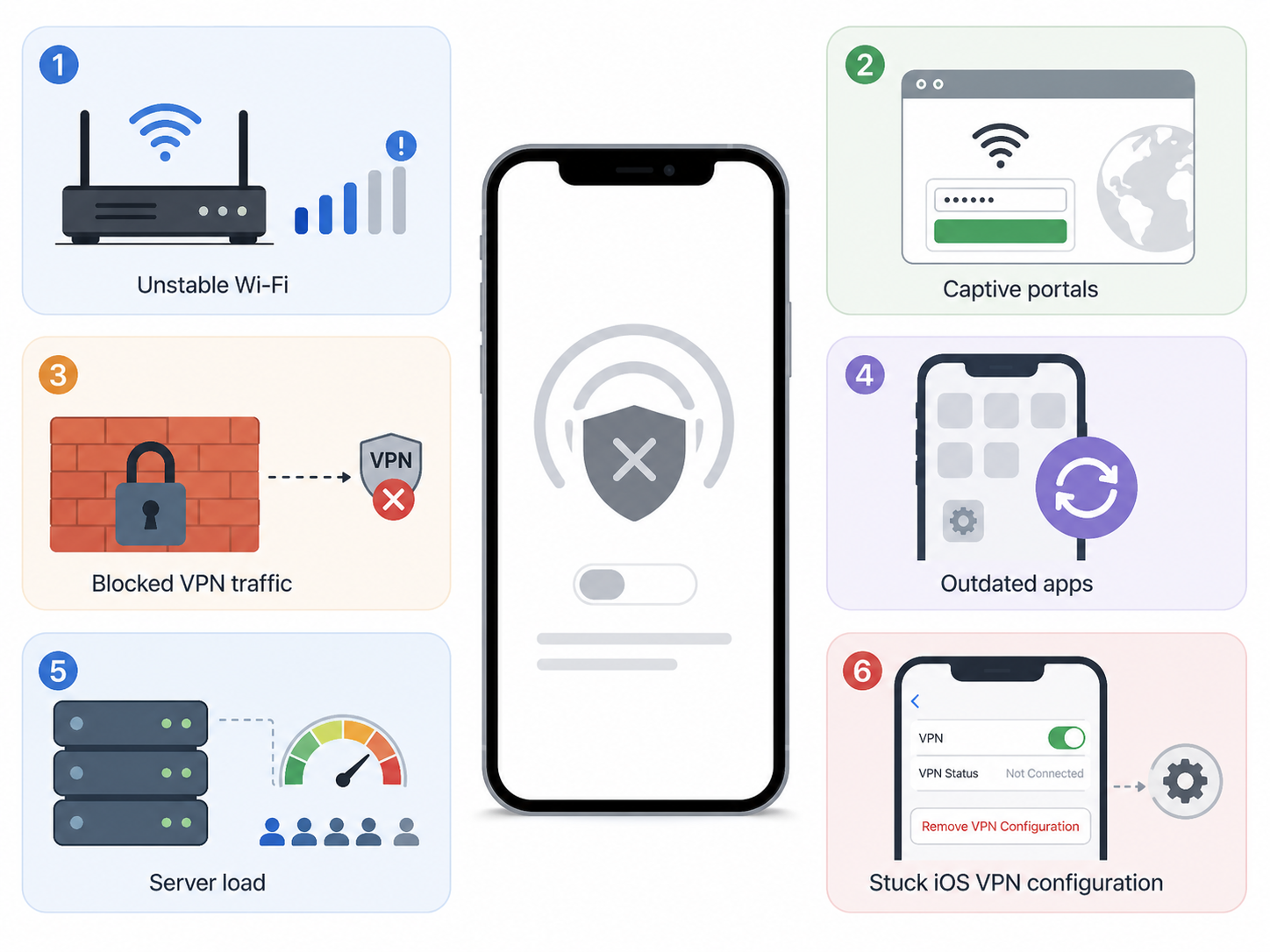
If Proton VPN will not connect on iPhone, start with the simple checks first. Most connection problems come from unstable Wi-Fi, captive portals, blocked VPN traffic, outdated apps, server load, or a stuck iOS VPN configuration.
| Problem | Likely cause | Fix |
|---|---|---|
| Connection stays on connecting | Network blocks the selected protocol or server | Switch to another server and set Protocol to Smart or Stealth if available. |
| No internet after connecting | Weak Wi-Fi, captive portal, or DNS issue | Disconnect, log in to the Wi-Fi portal, then reconnect Proton VPN. |
| Permission prompt never appears | VPN configuration was denied or stuck | Remove the Proton VPN profile in iOS settings or reinstall the app. |
| Only paid servers fail | Plan or account access issue | Check your Proton account status and choose a server included with your plan. |
| VPN disconnects repeatedly | Poor signal, battery restrictions, or network switching | Try a stronger network, update the app, and use Smart Protocol. |
Step-by-Step Troubleshooting Checklist
- Turn Wi-Fi off and on, or switch between Wi-Fi and mobile data to test the network.
- Restart your iPhone, then open Proton VPN again.
- Update Proton VPN from the App Store and install any available iOS update.
- Choose a different country or a nearby server with lower load.
- Open Proton VPN settings and set the protocol to Smart. If that fails, try another available protocol such as Stealth or WireGuard.
- Disable other VPN apps or security apps that may be trying to control the same VPN connection.
- If you use iCloud Private Relay, turn it off temporarily while testing browser-related issues.
- Go to iPhone Settings, General, VPN and Device Management, then remove the Proton VPN configuration if it appears broken. Reopen Proton VPN and allow the permission prompt again.
- Sign out of Proton VPN, sign back in, and confirm your plan supports the server you selected.
- If nothing works, use the support or report-a-problem option inside the Proton VPN app and include diagnostic logs if requested.
Do not delete random device management profiles unless you know what they are. Work and school iPhones may have required profiles that control network settings.
Practical Tips for Better Speed and Stability
- Use a nearby server when privacy matters but location does not.
- Use Fastest for daily browsing instead of manually choosing a faraway country.
- Switch networks if hotel, airport, school, or office Wi-Fi blocks VPN traffic.
- Keep Kill Switch enabled only if you are comfortable with internet access pausing during VPN drops.
- Use Secure Core when you want extra privacy, not when maximum speed is the priority.
Conclusion
Setting up Proton VPN on iPhone is straightforward: install the official App Store app, sign in, approve the iOS VPN configuration, select a server, and connect. The best setup for most users is Quick Connect or Fastest server, Smart Protocol, and auto-connect enabled. If Proton VPN does not connect, work through the network, server, protocol, permission, and account checks before assuming the app is broken.
FAQ
Is Proton VPN free on iPhone?
Yes. Proton VPN offers a free plan on iPhone through the official iOS app. Paid plans add more countries, faster servers, Secure Core, NetShield, and other advanced features.
Why does my iPhone ask Proton VPN to add VPN configurations?
iOS requires your permission before any app can create a VPN tunnel. Tap Allow and confirm with your passcode or biometrics. Without this permission, Proton VPN cannot connect.
How do I know Proton VPN is connected on iOS?
The Proton VPN app should show Connected, and iOS should show a VPN indicator in Control Center or the status area. You can also check your visible IP address in a browser.
Why will Proton VPN not connect on my iPhone?
The most common causes are unstable internet, blocked VPN protocols, a busy server, an outdated app, another VPN conflict, or a damaged iOS VPN configuration. Try Smart Protocol, switch servers, update the app, and re-allow the VPN profile.
Should I use Fastest or choose a country manually?
Use Fastest for everyday privacy and better speed. Choose a country manually only when you need your connection to appear from that location or when a specific server works better for your network.