
Table of contents
- Before You Install Proton VPN on macOS
- How to Install Proton VPN on Mac
- Grant the Required macOS VPN Permission
- If the Permission Prompt Does Not Appear
- Connect to a Proton VPN Server
- Use Quick Connect
- Choose a Country or Specific Server
- Server Options Compared
- Enable the Core Privacy Features
- Kill Switch
- NetShield
- Secure Core
- Protocol Selection
- Check That Proton VPN Is Working
- Common Proton VPN Mac Problems and Fixes
- Proton VPN Will Not Connect
- macOS Says the VPN Configuration Cannot Be Added
- Internet Stops Working After Disconnecting
- Connection Is Slow
- Some Websites Block the VPN
- Useful Settings for Everyday Use
- Conclusion
- FAQ
- How do I install Proton VPN on my Mac?
- Why does Proton VPN ask to add VPN configurations on macOS?
- Which Proton VPN server should I use on Mac?
- Why is Proton VPN not connecting on my Mac?
- Does Proton VPN Mac have a Kill Switch?
To use Proton VPN on a Mac, install the official Proton VPN macOS app, sign in, approve the VPN configuration when macOS asks, then connect with Quick Connect or choose a specific country and server. For better privacy, enable Kill Switch, use NetShield if your plan supports it, keep the protocol on Smart unless you need to bypass a restrictive network, and switch servers or protocols if the connection fails.
Proton VPN Mac setup is usually straightforward, but the macOS permission step is important. A VPN app cannot route traffic on macOS until you allow it to add a VPN configuration. If that prompt is skipped, blocked, or left half-approved, the app may open normally but fail to connect. The steps below follow the normal flow of Proton VPN's official macOS app and include the fixes most users need when something does not behave as expected.
Before You Install Proton VPN on macOS
Start with the official Proton VPN app, not a random installer from a download site. You can use Proton's website or the Mac App Store, but the direct official download is often the clearest choice if you want the full desktop app experience and the latest Proton VPN macOS features.
- Use a supported version of macOS and keep system updates reasonably current.
- Have your Proton account ready. A free Proton VPN account works, although server choice and some features are limited compared with paid plans.
- Make sure you can enter your Mac administrator password or approve changes with Touch ID.
- Close any older VPN app temporarily if it uses a system-wide VPN profile that may conflict.
- Use a trusted network for the first sign-in if possible, especially on public Wi-Fi.
A good rule: install the VPN before you need it. Setting it up calmly at home is easier than troubleshooting permissions on airport or hotel Wi-Fi.
How to Install Proton VPN on Mac
- Go to Proton VPN's official download page or open the Mac App Store and find Proton VPN.
- Download the macOS app. If you downloaded a disk image, open the downloaded file.
- Drag Proton VPN into the Applications folder if the installer asks you to do so.
- Open Proton VPN from the Applications folder. If macOS asks whether you want to open an app downloaded from the internet, confirm only if the publisher is Proton.
- Sign in with your Proton account email and password. Complete two-factor authentication if it is enabled on your account.
After sign-in, Proton VPN may show the main map or server list. Do not worry if you are not connected yet. The next step is allowing macOS to create the VPN configuration.
Grant the Required macOS VPN Permission
When you connect for the first time, macOS should show a system prompt saying Proton VPN wants to add VPN configurations. Approve it. You may need to enter your Mac password, use Touch ID, or confirm with an administrator account.
- Click Quick Connect or choose any server in Proton VPN.
- Wait for the macOS permission prompt.
- Select Allow or approve the VPN configuration.
- Authenticate with Touch ID, Apple Watch, or your Mac administrator password if prompted.
- Return to Proton VPN and wait until the status changes to connected.
This permission is normal. It lets the Proton VPN app create a secure network tunnel through Apple's Network Extension framework. Without it, the app cannot route your Mac's traffic through a Proton VPN server.
If the Permission Prompt Does Not Appear
If you clicked connect but never saw the approval prompt, try these fixes in order:
- Quit Proton VPN completely, open it again from Applications, and try connecting once more.
- Restart your Mac, then open Proton VPN and connect again.
- Open System Settings and check the VPN or Network area for an incomplete Proton VPN configuration.
- Remove old or duplicate Proton VPN entries only if they are clearly stale, then reconnect from the Proton VPN app so macOS can create a fresh one.
- Make sure you are using an administrator account, or ask the Mac administrator to approve the VPN configuration.
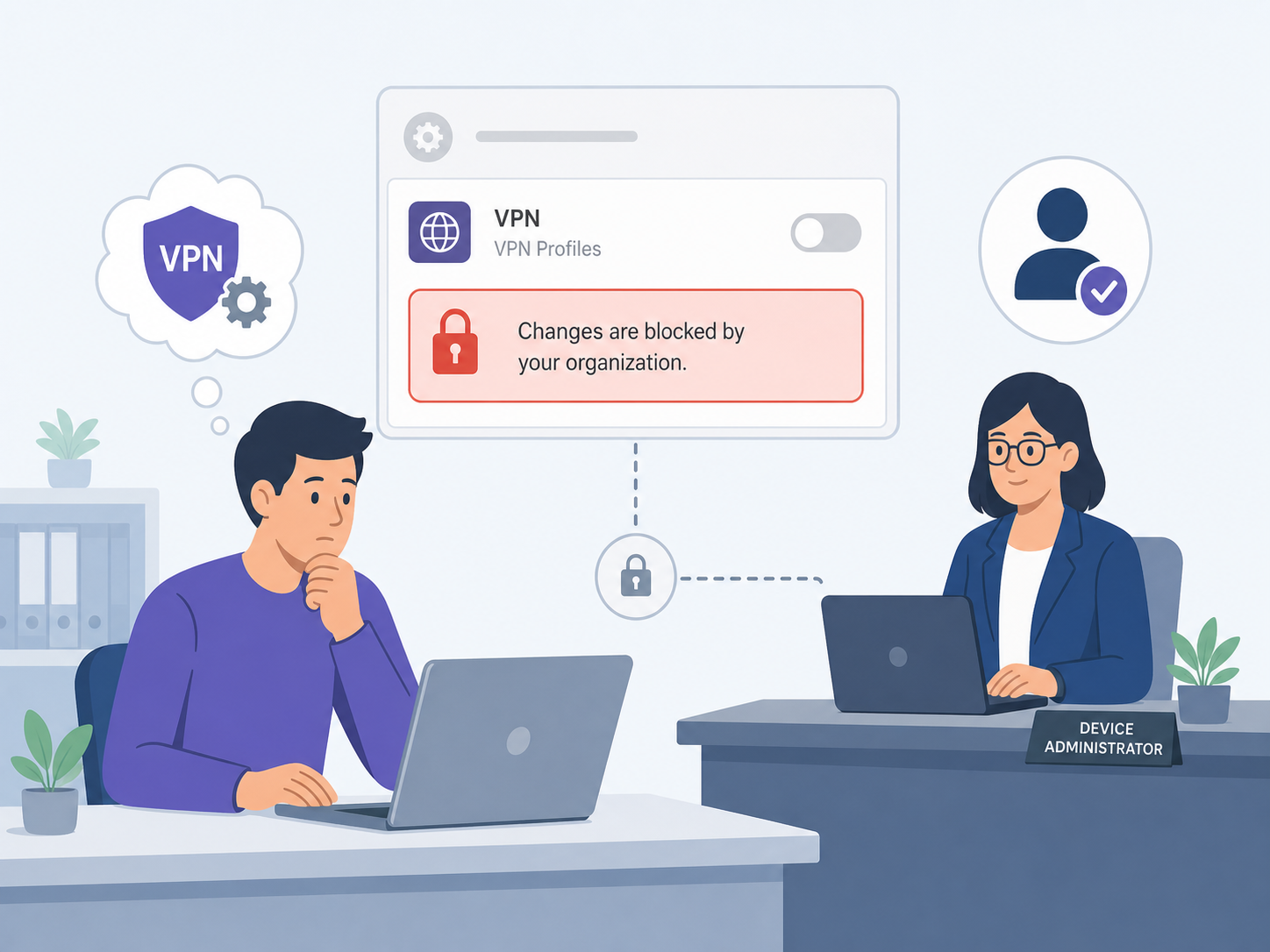
On managed work or school Macs, VPN configuration changes may be restricted by device management policies. In that case, Proton VPN may be fine, but macOS is not allowing your user account to add a VPN profile.
Connect to a Proton VPN Server
For most users, Quick Connect is the best first choice. It automatically selects a suitable server based on availability, distance, and load. If you only want private browsing on public Wi-Fi, Quick Connect is usually enough.
Use Quick Connect
- Open Proton VPN.
- Click Quick Connect.
- Wait until the app shows that you are connected.
- Open a browser and use the internet normally.
If pages load and the Proton VPN app shows a connected status, your Mac's traffic is going through the VPN tunnel.
Choose a Country or Specific Server
Choose a specific location when you need an IP address from a certain country, want lower latency, or need a server type such as Secure Core. In the Proton VPN Mac app, you can browse the country list, expand a country to view available servers, and choose a server with lower load when possible.
- Pick a nearby country for speed and video calls.
- Pick your home country when you need familiar search results or account access.
- Use a server with lower load if one server feels slow.
- Use Secure Core when privacy matters more than maximum speed.
- Switch countries if a website blocks one VPN location.
Server Options Compared
| Option | Best for | What to expect |
|---|---|---|
| Quick Connect | Daily private browsing | Fast setup with automatic server selection |
| Nearby country | Speed, calls, downloads, general browsing | Usually lower latency and better performance |
| Specific country | Region-specific accounts, search results, or services | More control, but speed depends on distance and server load |
| Secure Core | Higher privacy on risky networks | Routes traffic through a privacy-focused Proton server first, often with slower speeds |
| Free servers | Basic VPN use without payment | Fewer locations and less control than paid plans |
Enable the Core Privacy Features
Once the basic connection works, spend a few minutes on Proton VPN's privacy settings. You do not need to turn on every option, but a few features are useful for most Mac users.
Kill Switch
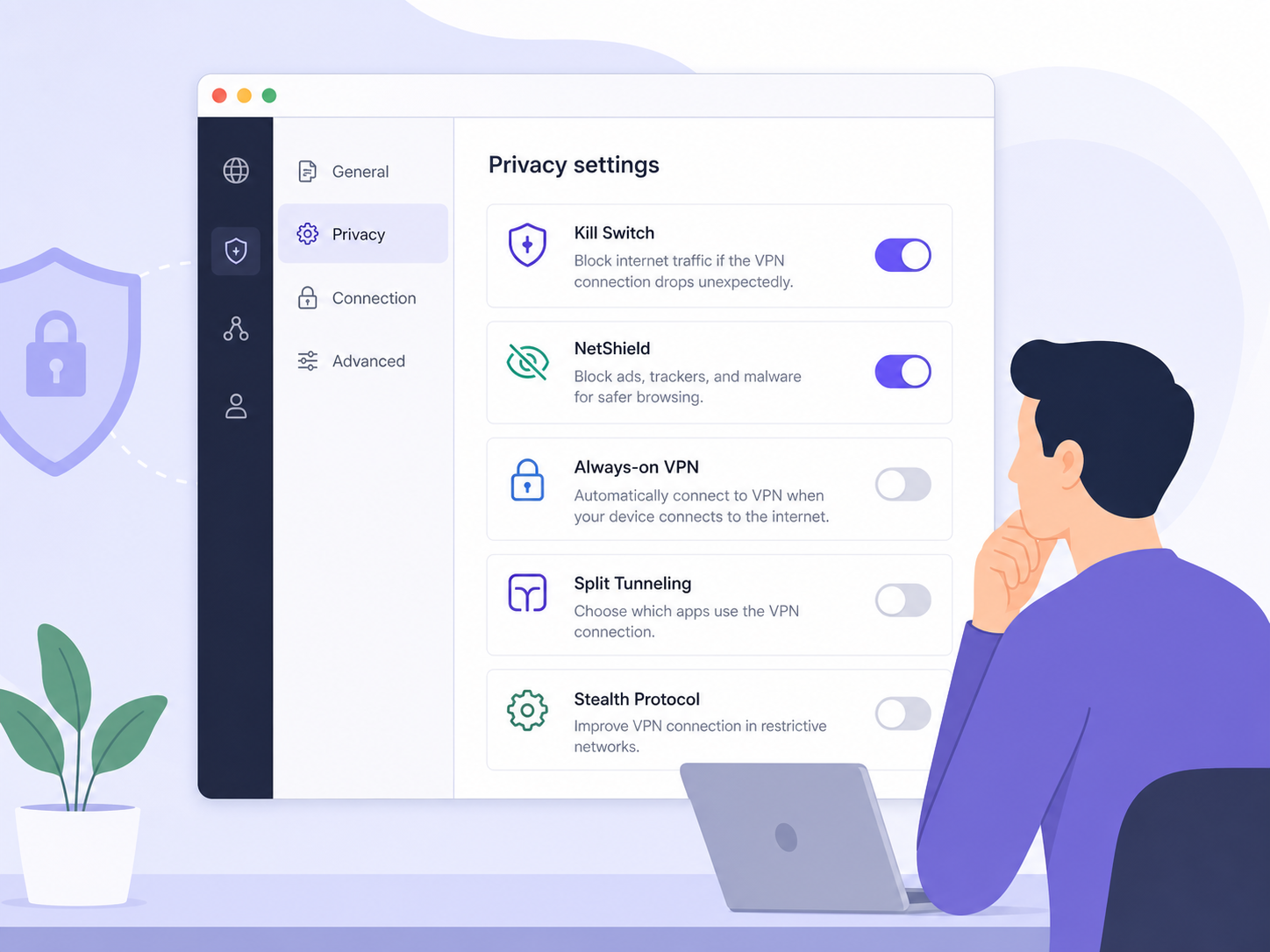
Kill Switch blocks your internet traffic if the VPN connection drops unexpectedly. This helps prevent your real IP address from being exposed during a network interruption. It is especially useful on public Wi-Fi or when you are handling sensitive accounts.
If your internet stops working after a VPN drop or disconnect, check whether Kill Switch or Permanent Kill Switch is enabled. Disable it temporarily if you need normal internet access without the VPN.
NetShield
NetShield is Proton VPN's DNS filtering feature for blocking malware, ads, and trackers, depending on your plan and selected setting. It is useful because it works at the VPN DNS level rather than relying only on a browser extension.
If a website breaks, a payment page fails, or a login form does not load correctly, test again with NetShield set to a less strict mode. Some sites rely on third-party scripts that aggressive blocking may interfere with.
Secure Core
Secure Core routes your connection through Proton's hardened servers before exiting through the country you choose. It is designed for people who want stronger protection against network-based attacks or monitoring in higher-risk situations.
The trade-off is speed. Because your traffic takes a longer route, Secure Core can be slower than a standard nearby server. Use it when privacy is the priority, not when you need the fastest possible download.
Protocol Selection
Proton VPN on macOS normally works well with the Smart protocol setting. Smart automatically chooses a suitable protocol for your network. If your connection fails, switching protocols is one of the best troubleshooting steps.
| Protocol setting | When to use it | Notes |
|---|---|---|
| Smart | Most users, most networks | Lets the app choose the best available option automatically |
| WireGuard | Fast everyday browsing | Often provides strong speed and modern security |
| Stealth | Restrictive Wi-Fi or networks that block VPNs | Designed to make VPN traffic harder to detect |
| OpenVPN TCP | Very restrictive or unstable networks | Can be more reliable, but may be slower |
Check That Proton VPN Is Working
After connecting, confirm the basics before assuming everything is protected. The Proton VPN app should show a connected status, a selected server, and a VPN IP address. Your Mac menu bar may also show a VPN indicator, depending on your macOS settings.
- Open a browser and confirm websites load normally.
- Check that the Proton VPN app says connected, not connecting or reconnecting.
- Try a nearby server if speed feels unusually slow.
- Use Proton VPN's built-in connection details to confirm the active server and protocol.
- Disconnect and reconnect once to make sure the permission setup is stable.
If you use custom DNS tools, firewall apps, antivirus web shields, or another VPN client, test Proton VPN with those tools temporarily disabled. Multiple network tools can compete for the same routing or DNS behavior on macOS.
Common Proton VPN Mac Problems and Fixes
Proton VPN Will Not Connect
First, switch to another server in the same country. If that fails, change the protocol from Smart to WireGuard, Stealth, or OpenVPN TCP. Restarting the app also helps if the connection process is stuck.
- Try Quick Connect instead of a manually chosen server.
- Switch from Wi-Fi to another network if available.
- Restart your router if all VPN servers fail at home.
- Update Proton VPN to the latest macOS version.
- Restart your Mac if macOS network services appear stuck.
macOS Says the VPN Configuration Cannot Be Added
This usually points to permissions, an old configuration, or device management restrictions. Make sure you are using an administrator account. Then check System Settings for existing Proton VPN entries and remove obvious duplicates before trying again through the Proton VPN app.
If the Mac is owned by your employer or school, the administrator may block VPN profile changes. You may need approval from the device administrator.
Internet Stops Working After Disconnecting
Check Kill Switch first. If Kill Switch or Permanent Kill Switch is active, Proton VPN may intentionally block traffic when the VPN is not connected. Turn it off if you want to browse without the VPN.
If that does not fix it, quit Proton VPN, toggle Wi-Fi off and on, or restart the Mac. Also check whether another VPN, firewall, or DNS app is still controlling the network connection.
Connection Is Slow
Slow VPN speeds are usually caused by distance, server load, protocol choice, or a weak local network. Start by choosing a nearby server with lower load. If you are using Secure Core, switch to a standard server for speed-sensitive tasks.
- Use WireGuard or Smart for general speed.
- Choose a server geographically close to you.
- Disconnect other VPN or proxy tools.
- Test on another Wi-Fi network to rule out local congestion.
- Pause large downloads or cloud backups while testing.
Some Websites Block the VPN
Some websites block known VPN IP addresses or ask for extra verification. Switch to another server, try a different country, or reconnect later. If a banking or work site refuses VPN traffic, you may need to disconnect temporarily or use a server in your usual country.
Useful Settings for Everyday Use
For a simple, reliable setup, keep Proton VPN configured in a way that matches your normal routine rather than turning on every advanced option at once.
- Use Quick Connect for everyday browsing and public Wi-Fi.
- Keep protocol selection on Smart unless a network blocks the VPN.
- Enable Kill Switch when privacy matters more than uninterrupted access.
- Use NetShield for cleaner browsing, but reduce filtering if a site breaks.
- Use Secure Core only when the extra privacy is worth the speed trade-off.
One feature Mac users often ask about is split tunneling. Proton VPN's split tunneling support varies by platform, and it is not generally available in the same way on macOS as it is on some other operating systems. If you need one app outside the VPN and another inside it, check the current Proton VPN macOS feature list before planning a workflow around that feature.
Conclusion
Proton VPN on Mac is easy to use once the macOS VPN permission is approved. Install the official app, sign in, allow the VPN configuration, and start with Quick Connect. From there, choose specific servers when you need location control, enable Kill Switch and NetShield for stronger everyday protection, and use protocol changes to solve blocked or unstable connections.
If something goes wrong, do not reinstall immediately. Most Proton VPN macOS issues come down to permissions, server choice, protocol selection, Kill Switch behavior, or conflicts with another network tool. Work through those areas first and you will usually find the fix quickly.
FAQ
How do I install Proton VPN on my Mac?
Download Proton VPN from the official Proton website or the Mac App Store, install it in Applications, open the app, sign in, and approve the macOS VPN configuration when prompted.
Why does Proton VPN ask to add VPN configurations on macOS?
macOS requires your approval before any VPN app can create a system VPN tunnel. Proton VPN needs this permission to route your Mac's internet traffic through its secure servers.
Which Proton VPN server should I use on Mac?
Use Quick Connect for normal browsing. Choose a nearby server for speed, a specific country for location needs, and Secure Core when stronger privacy is more important than speed.
Why is Proton VPN not connecting on my Mac?
Common causes include a missing VPN permission, a blocked network, a busy server, or a protocol issue. Try another server, switch protocols, restart the app, and check macOS VPN settings for old or duplicate configurations.
Does Proton VPN Mac have a Kill Switch?
Yes, Proton VPN's Mac app includes Kill Switch options. If your internet stops after disconnecting, check whether Kill Switch or Permanent Kill Switch is enabled and turn it off if you want internet access without the VPN.