
Table of contents
- Quick answer for Linux beginners
- What to check before downloading Proton VPN for Linux
- 1. Identify your Linux distribution
- 2. Check whether your system is 64-bit
- 3. Download only from the official source
- Which Proton VPN Linux download should you choose?
- Ubuntu and Ubuntu-based distros
- Debian
- Fedora
- Arch, Manjaro, openSUSE, and other Linux distributions
- Safe installation steps for beginners
- Basic privacy setup after installation
- Turn on the kill switch
- Use auto-connect if you often forget to start the VPN
- Start with Smart Protocol or the recommended protocol
- Check DNS leak protection
- Use advanced features only when you understand them
- Common mistakes to avoid
- When manual WireGuard or OpenVPN setup makes sense
- Best recommendation for most new Linux users
- FAQ
- Which Proton VPN download do I need for Ubuntu?
- Can I install the Fedora RPM package on Linux Mint?
- Is the Proton VPN Linux CLI still the best option?
- What should I do if my Linux distro is not supported?
- How do I know Proton VPN is working on Linux?
If you are new to Linux, the right Proton VPN download is the official Linux app package that matches your distribution: use the DEB package or repository instructions for Ubuntu and Debian-based systems, the RPM package or repository instructions for Fedora-based systems, and manual OpenVPN or WireGuard configuration only if your distro is not officially supported by the Proton VPN app. Avoid random scripts, old community CLI tools, and third-party mirrors.
Quick answer for Linux beginners
Most beginners should install the official Proton VPN Linux graphical app, not an unofficial command-line client. The graphical app is easier to manage, receives safer updates through your package manager, and gives you access to essential privacy controls without requiring advanced Linux knowledge.
| Your Linux system | Best Proton VPN download choice | Beginner difficulty | Notes |
|---|---|---|---|
| Ubuntu | Official DEB package or Proton VPN repository setup | Easy | Best choice for most first-time Linux users. |
| Linux Mint, Pop!_OS, Zorin OS | Usually the Ubuntu/Debian DEB route | Easy to moderate | These are Ubuntu-based, but always check Proton’s current support notes. |
| Debian | Official DEB package or repository setup | Moderate | Stable and reliable, but package versions may differ from Ubuntu. |
| Fedora | Official RPM package or Proton VPN repository setup | Easy to moderate | Use Fedora instructions rather than Debian commands. |
| Arch, Manjaro, openSUSE, other distros | Manual WireGuard/OpenVPN configuration if the app is not supported | Moderate to advanced | Works for many users, but requires more care and troubleshooting. |
What to check before downloading Proton VPN for Linux
Before you install anything, confirm three things: your Linux distribution, your system architecture, and whether you want the easiest app experience or a manual VPN configuration.
1. Identify your Linux distribution
Open your system settings and look for an “About” page, or run this command in Terminal:
cat /etc/os-release
You are looking for names such as Ubuntu, Debian, Fedora, Linux Mint, Pop!_OS, or Arch. This matters because Linux packages are not universal. A DEB file is not meant for Fedora, and an RPM file is not meant for Ubuntu.
2. Check whether your system is 64-bit
Most modern laptops and desktops are 64-bit. You can check with:
uname -m
If you see x86_64, you are on a standard 64-bit Intel or AMD system. If you use ARM hardware, such as some single-board computers or specialty laptops, check Proton’s current Linux support carefully before installing.
3. Download only from the official source
VPN software handles sensitive network traffic, so the source matters. Use the official Proton VPN download page or Proton’s own documentation. Do not install VPN packages from unknown blogs, file-sharing sites, repackaged installers, or old GitHub projects that are no longer maintained.
Which Proton VPN Linux download should you choose?
The safest beginner rule is simple: match the package format to your distro family. If you are unsure, do not guess. Check your distro name first, then follow the matching instructions.
Ubuntu and Ubuntu-based distros
For Ubuntu, Linux Mint, Pop!_OS, Zorin OS, and many similar distributions, you normally want the DEB-based Proton VPN Linux download. This may involve installing a small repository package first, then installing the Proton VPN app through your package manager.
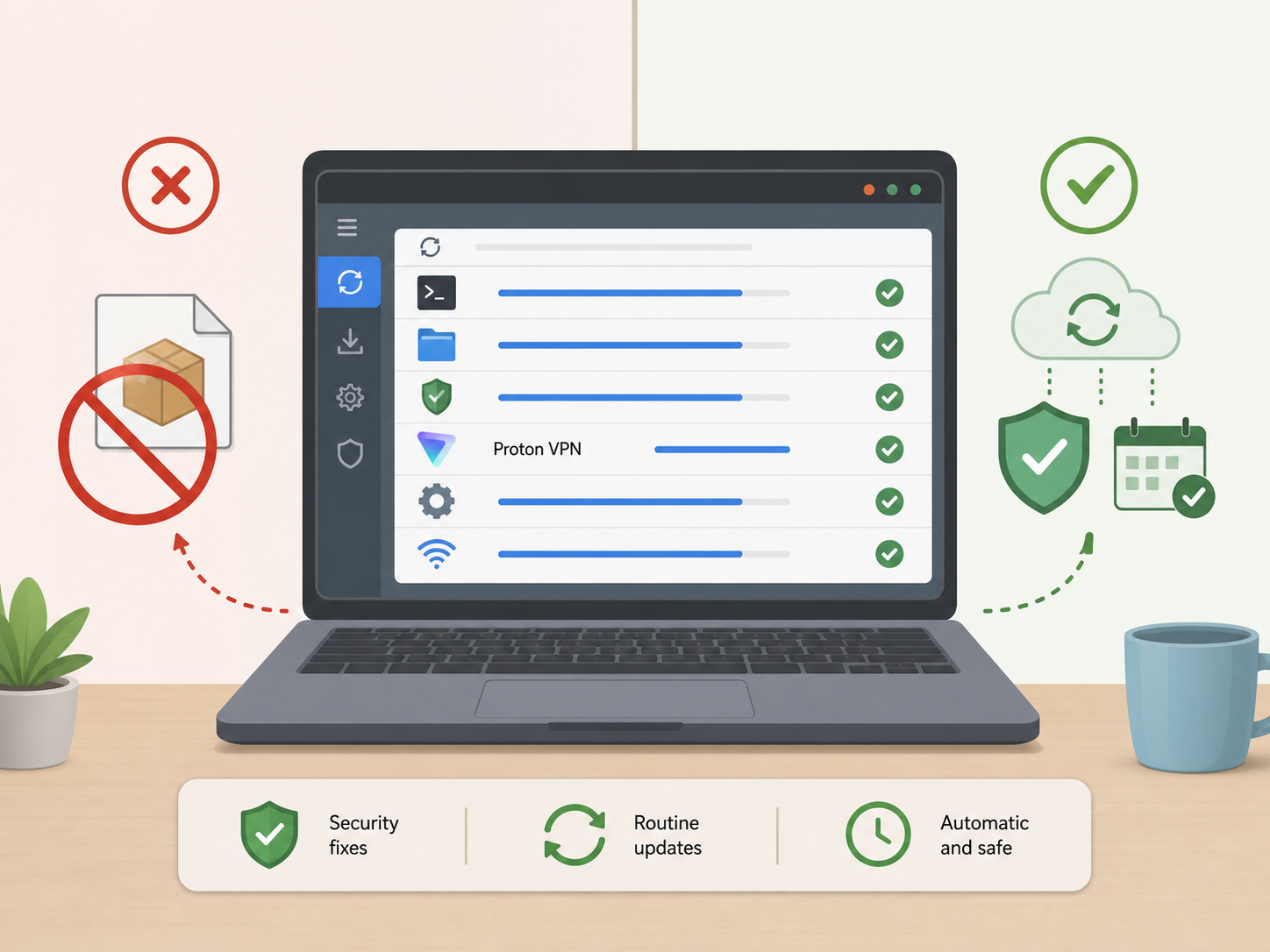
This approach is better than downloading a single random installer because it lets Linux update Proton VPN along with your other software. Beginners benefit from that because security fixes arrive through normal system updates.
Debian
Debian users should also look for the DEB-based route, but they should pay closer attention to Proton’s supported Debian versions. Debian Stable can be conservative with dependencies, so old Debian releases may not work with the newest Proton VPN app.
If you are on a very old Debian version, upgrade Debian first rather than forcing a VPN app to install with broken dependencies.
Fedora
Fedora users should choose the RPM-based Proton VPN Linux download or repository setup. Fedora uses a different packaging system from Ubuntu and Debian, so copying Ubuntu commands into Fedora will usually fail.
Fedora also updates quickly. That is good for security, but it means you should keep both Fedora and Proton VPN updated to avoid compatibility problems.
Arch, Manjaro, openSUSE, and other Linux distributions
If your distro is not officially supported by the Proton VPN Linux app, you still may be able to use Proton VPN through manual WireGuard or OpenVPN configuration files from your Proton account. This is more technical, but it is a valid path for users who are comfortable with NetworkManager or terminal-based VPN tools.
For complete beginners, however, using a supported distro such as Ubuntu, Debian, or Fedora will make the Proton VPN Linux setup much easier.
Safe installation steps for beginners
The exact commands can change when Proton updates its Linux app, so use these steps as a safe workflow rather than copying outdated commands from an old forum post.
- Confirm your distro. Check whether you are on Ubuntu, Debian, Fedora, or another distribution.
- Go to the official Proton VPN download page. Choose the Linux option and select the instructions for your distro family.
- Install the official repository package if Proton provides one. This helps your package manager receive updates safely.
- Refresh your package list. On Debian or Ubuntu this is usually done with apt. On Fedora it is usually done with dnf.
- Install the Proton VPN app. Use the package manager command shown in Proton’s current documentation.
- Open the app and sign in. Use your Proton account credentials.
- Connect to a nearby server first. A nearby server is usually faster and easier to test.
- Check for leaks. Confirm your IP address and DNS results show the VPN location, not your home network.
Basic privacy setup after installation
Installing the app is only half the job. A good Proton VPN Linux setup also needs a few privacy settings that reduce accidental exposure if the VPN disconnects or your network changes.
Turn on the kill switch
The kill switch helps block internet traffic if the VPN connection drops. For privacy-focused users, this is one of the most important settings. It prevents your real IP address from being exposed during sudden Wi-Fi changes, sleep/wake events, or unstable networks.
Use auto-connect if you often forget to start the VPN
If you want privacy protection every time you go online, enable auto-connect. A practical beginner setup is to connect automatically to the fastest available server or to a trusted country you use often.
Start with Smart Protocol or the recommended protocol
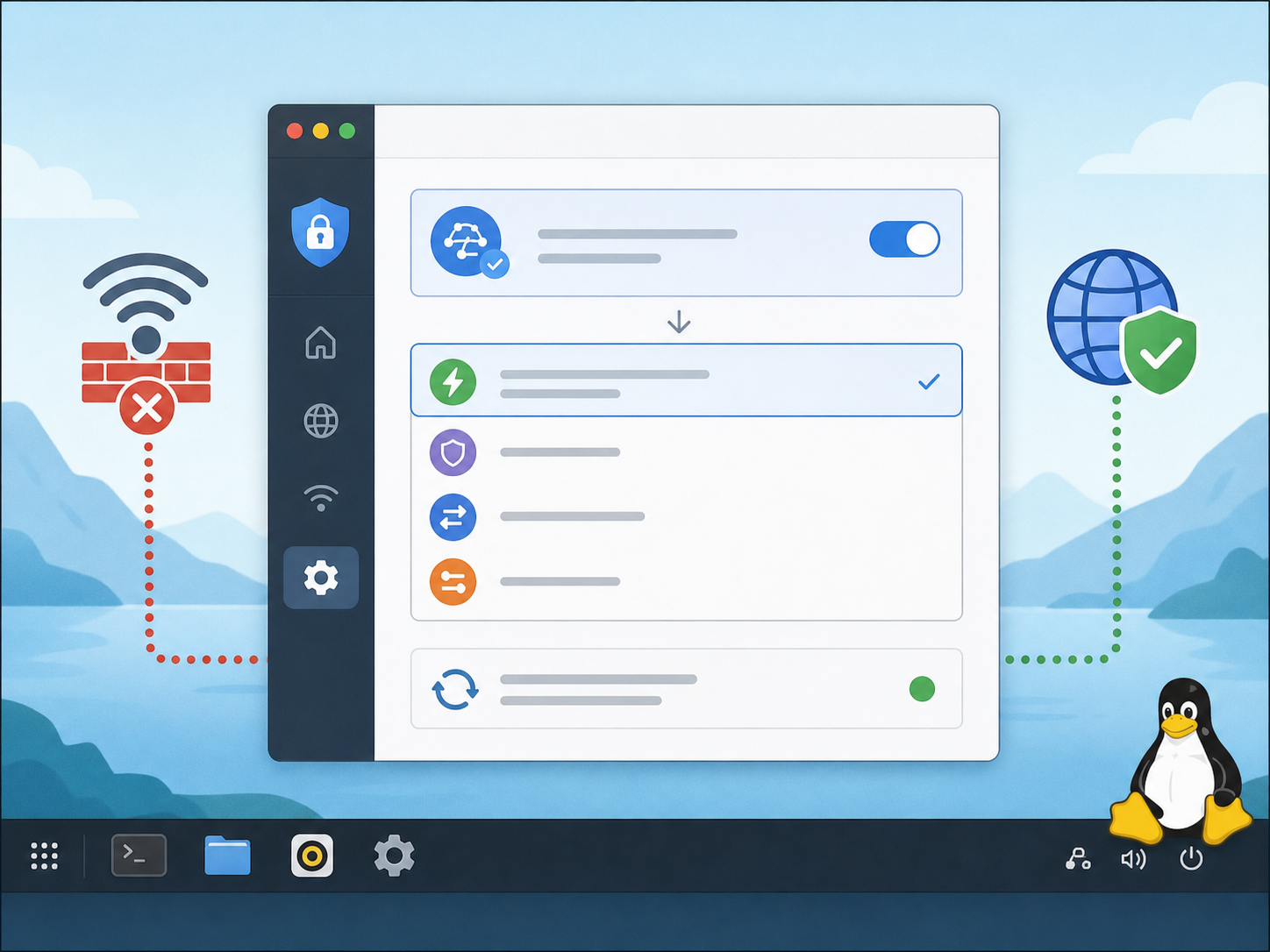
VPN protocols affect speed, stability, and whether the connection works on restrictive networks. Beginners should usually start with the app’s recommended or Smart Protocol setting. If a network blocks one protocol, the app may be able to choose another that works better.
Check DNS leak protection
A DNS leak happens when website lookup requests go outside the VPN tunnel. Proton VPN is designed to protect against DNS leaks, but it is still worth checking after your first connection. Use a reputable DNS leak test in your browser and confirm the results do not show your internet provider’s DNS servers.
Use advanced features only when you understand them
Features such as split tunneling, Secure Core, port forwarding, and custom DNS can be useful, but they also change how your traffic behaves. If your goal is simple privacy, start with a normal VPN connection, kill switch, and auto-connect. Add advanced features later when you know why you need them.
Common mistakes to avoid
- Installing the wrong package type. DEB is for Debian and Ubuntu families. RPM is for Fedora-style systems.
- Using outdated CLI guides. Some old Proton VPN Linux CLI instructions online refer to tools that are no longer the recommended path for beginners.
- Downloading from unofficial mirrors. VPN installers should come only from Proton’s official source.
- Ignoring system updates. Keep your Linux system and Proton VPN app updated to receive security and compatibility fixes.
- Forgetting the kill switch. Without it, your traffic may fall back to your regular connection if the VPN drops.
When manual WireGuard or OpenVPN setup makes sense
Manual configuration is useful if you use a distro that the official Proton VPN Linux app does not support, if you manage servers, or if you prefer built-in Linux network tools. It is also a good option for lightweight systems where you do not want a full desktop app.
That said, manual setup is less beginner-friendly. You may need to download configuration files from your Proton account, import them into NetworkManager, install extra packages, and troubleshoot DNS or routing issues yourself. If you are setting up VPN privacy for the first time, the official app is usually the smoother choice.
Best recommendation for most new Linux users
If you are a Linux beginner using Ubuntu, Linux Mint, Pop!_OS, Debian, or Fedora, choose the official Proton VPN Linux app package for your distro and install it through the recommended repository method. It is the easiest way to get updates, avoid unsafe downloads, and manage privacy settings without fighting the command line.
If your distro is not supported, do not force the wrong package. Use Proton’s manual WireGuard or OpenVPN configuration instead, or consider using a supported Linux distribution if VPN simplicity is a priority.
FAQ
Which Proton VPN download do I need for Ubuntu?
Ubuntu users should choose the official DEB-based Proton VPN Linux download or repository setup. This is the beginner-friendly option and allows updates through the system package manager.
Can I install the Fedora RPM package on Linux Mint?
No. Linux Mint is Ubuntu-based, so it should use the DEB-based installation path. Fedora RPM packages are meant for Fedora and related RPM-based distributions.
Is the Proton VPN Linux CLI still the best option?
For most beginners, no. The official graphical Linux app is usually the better choice because it is easier to use, easier to update, and less likely to involve outdated community instructions.
What should I do if my Linux distro is not supported?
Use manual WireGuard or OpenVPN configuration from your Proton account, or switch to a supported distro such as Ubuntu, Debian, or Fedora if you want the simplest setup.
How do I know Proton VPN is working on Linux?
Connect to a VPN server, then check your public IP address and run a DNS leak test. The results should show the VPN server location and Proton-related DNS, not your home IP or internet provider.