
Table of contents
- Why keeping the Proton VPN desktop app updated matters
- Before you update Proton VPN on desktop
- How to update Proton VPN on Windows safely
- Option 1: Use the built-in updater
- Option 2: Install the latest Windows app over the current version
- How to update Proton VPN on Mac safely
- Option 1: Update from inside the Mac app
- Option 2: Replace the app using the latest DMG
- Windows vs Mac update methods
- How to preserve settings during a Proton VPN update
- How to avoid outdated or unsafe installers
- Use this quick safety checklist
- Troubleshooting Proton VPN update failures
- 1. The update download gets stuck
- 2. Windows blocks the installer
- 3. Mac says the app cannot be opened or verified
- 4. Proton VPN opens but will not connect after updating
- 5. Settings are missing after the update
- When should you uninstall and reinstall?
- Final check after updating
- FAQ
- Do I need to uninstall Proton VPN before updating?
- Will updating Proton VPN delete my saved settings?
- Is it safe to use an old Proton VPN installer?
- Why does Proton VPN fail to update on Windows?
- Why does Proton VPN fail to update on Mac?
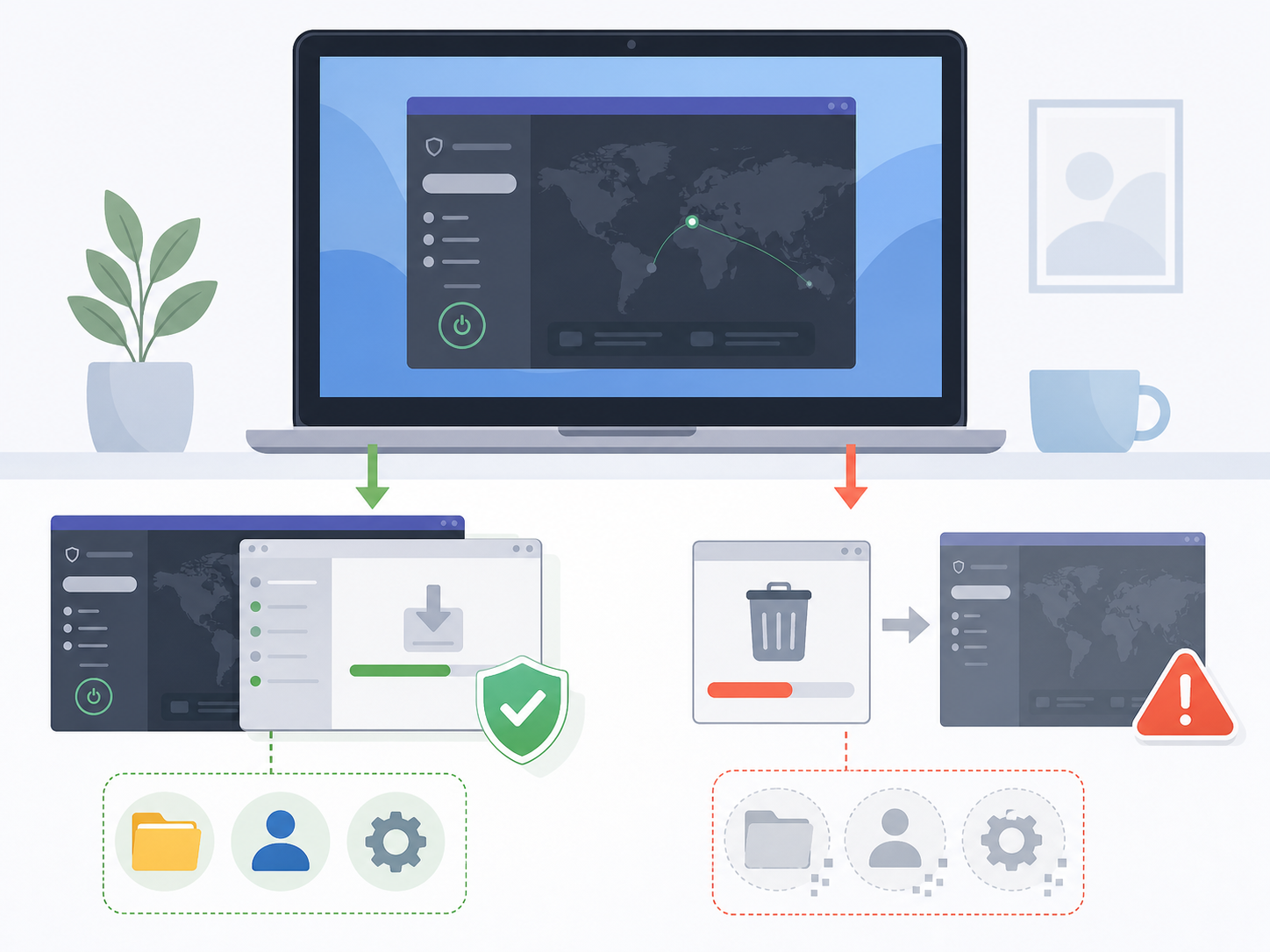
If you already completed a proton vpn download on your desktop, the safest way to update Proton VPN is to use the app’s built-in update prompt or download the latest desktop installer from the official source and install it over your current version. In most cases, updating in place keeps your settings, saved profiles, login state, and security preferences intact. You should avoid old installers, third-party download sites, and unnecessary uninstalling unless you are troubleshooting a broken installation.
Why keeping the Proton VPN desktop app updated matters
VPN updates are not just cosmetic. A current Proton VPN desktop app can include security fixes, protocol improvements, server list updates, compatibility fixes for Windows or macOS, and changes that help features like Kill Switch, NetShield, split tunneling, and auto-connect work more reliably.
An outdated VPN app may still connect, but it can behave unpredictably after an operating system update. For example, macOS privacy permissions or Windows network drivers can change after system updates, and older VPN builds may not handle those changes well.
Before you update Proton VPN on desktop
Take a minute to prepare before you update. This reduces the chance of failed installation, lost preferences, or connection problems after the update.
- Use a trusted source: Use the in-app updater or the official protonvpn download page. Avoid software bundle sites and archived installers.
- Keep your current app installed: Do not uninstall first unless the updater fails or support instructions tell you to do so.
- Check your account access: Make sure you know your Proton account email and password in case the app asks you to sign in again.
- Close active downloads or meetings: Updating may briefly disconnect the VPN.
- Restart if pending: If Windows or macOS has a pending system restart, complete it before updating.
Best practice: update over the existing installation first. This is the simplest way to preserve settings and avoid rebuilding your VPN configuration from scratch.
How to update Proton VPN on Windows safely
Option 1: Use the built-in updater
- Open the Proton VPN desktop app.
- Disconnect from the VPN if you are currently connected.
- Look for an update prompt, notification, or update option in the app settings or menu.
- Start the update and allow the installer to run.
- If Windows User Account Control appears, confirm that the app name and publisher look legitimate before clicking Yes.
- Wait for the update to finish, then reopen Proton VPN.
- Reconnect and confirm that your preferred protocol, Kill Switch, auto-connect, and profiles still look correct.
The built-in updater is usually the best option because it is designed to replace only the files that need updating while preserving user data.
Option 2: Install the latest Windows app over the current version
If the in-app update does not appear or fails repeatedly, download the latest Windows installer from the official Proton VPN desktop download page. Then follow these steps:
- Quit Proton VPN from the system tray. Do not just close the main window.
- Run the new installer you downloaded.
- Choose the normal install or update path. Do not remove user settings unless the installer specifically asks and you want to reset the app.
- Allow driver or network adapter updates if prompted.
- Restart Windows if the installer requests it.
- Open the app and verify that your settings are still present.
Installing over the current version normally preserves local app data. A full uninstall can remove some local settings depending on the uninstall options selected, so save that approach for troubleshooting.
How to update Proton VPN on Mac safely
Option 1: Update from inside the Mac app
- Open the Proton VPN app on your Mac.
- Disconnect from the VPN temporarily.
- Check the app menu or settings for an available update.
- Start the update and follow the prompts.
- If macOS asks for permission, confirm it is related to Proton VPN before approving.
- After the update, reopen the app and reconnect.
On macOS, the in-app updater is usually the least disruptive method. It should preserve preferences stored in your user account, including common connection settings and app behavior options.
Option 2: Replace the app using the latest DMG
If the built-in updater is unavailable, use the latest official Mac installer. The usual process is simple:
- Quit Proton VPN completely from the menu bar.
- Open the latest Proton VPN DMG file.
- Drag the Proton VPN app into the Applications folder.
- When macOS asks whether to replace the existing app, choose Replace.
- Open Proton VPN from the Applications folder, not from the DMG window.
- Approve any VPN configuration or system permission prompts if they appear.
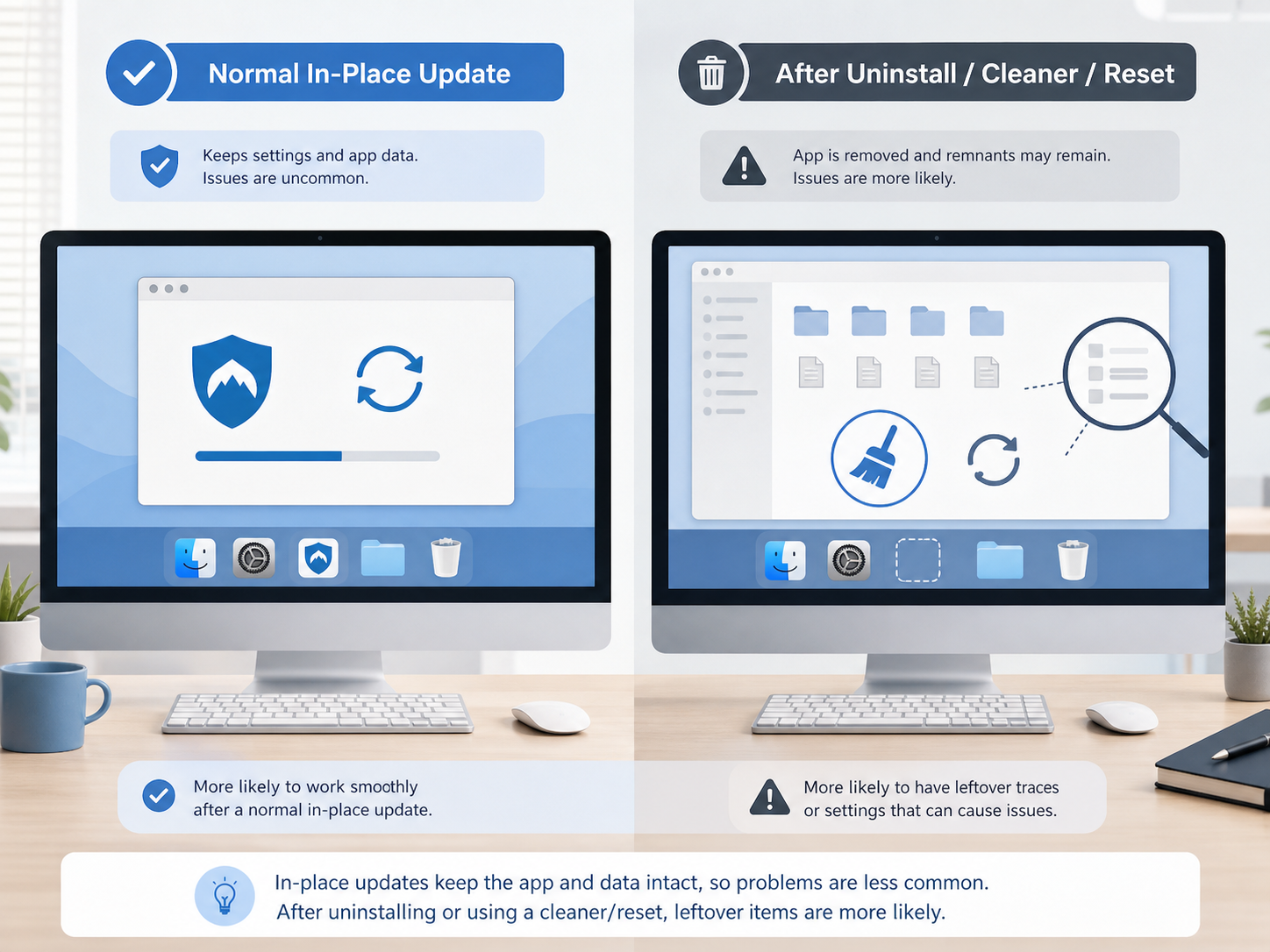
Replacing the app in the Applications folder should not normally delete your user preferences. Those settings are stored separately from the app bundle. However, if you use a third-party app cleaner to remove Proton VPN first, it may delete related preference files as well.
Windows vs Mac update methods
| Update method | Windows | Mac | Best used when |
|---|---|---|---|
| Built-in updater | Runs an update installer and may update network components | Updates the app directly through the app interface | You want the safest and simplest update path |
| Manual install over current app | Run the latest official .exe installer | Replace the app in Applications using the latest DMG | The app does not show an update or the updater fails |
| Full uninstall and reinstall | May remove local app data depending on uninstall choices | May remove preferences if app cleaners are used | Only for persistent errors or corrupted installations |
| Old saved installer | Not recommended | Not recommended | Avoid unless instructed by official support for a specific reason |
How to preserve settings during a Proton VPN update
Most users do not need to do anything special to preserve settings. The key is to update over the existing app instead of removing it first.
- Do not use cleanup tools before updating: App cleaners can remove preference files, caches, and saved configuration data.
- Avoid selecting reset options: If an installer or uninstaller offers to remove user data, leave that unchecked unless you are deliberately troubleshooting.
- Review custom settings after the update: Check Kill Switch, auto-connect, split tunneling, protocol selection, DNS or NetShield settings, and saved profiles.
- Keep account credentials available: Most updates keep you signed in, but a major version change may ask you to log in again.
If you rely on Proton VPN for a specific workflow, such as connecting before opening a work app, test that workflow immediately after updating rather than waiting until you need it urgently.
How to avoid outdated or unsafe installers
Old installers are a common reason users end up with update loops, compatibility errors, or missing features. Modified installers are worse because they can introduce security risks.
Use this quick safety checklist
- Download only from the official Proton VPN source or use the built-in updater.
- Do not reuse an installer that has been sitting in your Downloads folder for months.
- Be careful with search ads or download mirrors that mimic official download pages.
- On Windows, check that the installer publisher appears legitimate when User Account Control opens.
- On Mac, open the app from the Applications folder after installation, not directly from a mounted DMG.
- Delete old installers after a successful update to avoid accidentally running them later.
Troubleshooting Proton VPN update failures
1. The update download gets stuck
- Disconnect and reconnect your internet connection.
- Temporarily switch from VPN to a normal connection if the update is downloading through the VPN tunnel.
- Restart the Proton VPN app and try again.
- Restart the computer if the update process appears frozen.
- Download the latest installer manually from the official source if the in-app updater still fails.
2. Windows blocks the installer
Windows may block an installer if it was downloaded from an unusual source, is incomplete, or is being scanned by security software.
- Delete the installer and download a fresh copy from the official site.
- Run the installer from your local Downloads folder, not from a network drive.
- Right-click the installer and choose Run as administrator if permissions are the issue.
- Temporarily pause third-party antivirus only if you trust the installer source, then turn protection back on immediately.
3. Mac says the app cannot be opened or verified
- Make sure you downloaded the latest Mac version from the official source.
- Move Proton VPN to the Applications folder before opening it.
- Check macOS Privacy & Security settings for blocked app or VPN permission prompts.
- Restart the Mac and try opening the app again.
4. Proton VPN opens but will not connect after updating
- Sign out and sign back in.
- Switch VPN protocol, for example from Smart or WireGuard to another available option.
- Turn Kill Switch off and back on to refresh the network state.
- Restart your computer to reload VPN services and network extensions.
- On Windows, check whether the Proton VPN network adapter or service was blocked by security software.
5. Settings are missing after the update
This is uncommon after a normal in-place update. It is more likely after a full uninstall, the use of an app cleaner, or a reset during troubleshooting.
- Check whether you are signed into the correct Proton account.
- Recreate custom profiles if they were local to the app.
- Review auto-connect, Kill Switch, split tunneling, and protocol settings manually.
- If the app looks completely fresh after a normal update, contact Proton support with your operating system version and app version.
When should you uninstall and reinstall?
A full uninstall should be the last step, not the normal update method. Consider it only if the app will not launch, the update installer repeatedly fails, the VPN driver or network extension is corrupted, or support documentation specifically recommends a clean reinstall.
If you do uninstall, read each prompt carefully. On Windows, uninstallers sometimes ask whether to remove configuration or user data. On Mac, avoid third-party cleaners unless you intentionally want to remove all related files.
Final check after updating
After you update Proton VPN, do one short test before returning to normal use. Open the app, confirm the version changed, connect to a nearby server, visit a trusted IP-check page if needed, and verify that your important settings are still enabled. This takes less than two minutes and catches most update-related issues early.
FAQ
Do I need to uninstall Proton VPN before updating?
No. In most cases, you should update over the existing installation. Uninstalling first can remove local settings if you choose reset options or use cleanup tools.
Will updating Proton VPN delete my saved settings?
A normal in-app update or install-over update should preserve your settings. Still, check Kill Switch, auto-connect, split tunneling, protocol preferences, and saved profiles after updating.
Is it safe to use an old Proton VPN installer?
It is better not to. Old installers may lack security fixes, fail on newer operating systems, or reinstall an outdated app version. Use the latest official desktop installer instead.
Why does Proton VPN fail to update on Windows?
Common causes include permission issues, antivirus interference, a pending Windows restart, a damaged installer, or a blocked network component. Restart first, then try the official installer as administrator.
Why does Proton VPN fail to update on Mac?
Typical causes include opening the app from the DMG instead of Applications, missing macOS permissions, a damaged download, or security settings blocking the app. Replace the app in Applications using the latest official DMG.