
Table of contents
- Why verifying the Proton VPN installer matters
- Step 1: Confirm the installer source
- Safe download sources
- Sources to avoid
- Step 2: Check the page before downloading
- Step 3: Verify the Proton VPN installer file
- On Windows
- On macOS
- On Linux
- On Android and iOS
- Step 4: Use checksums when they are provided
- What to do if no checksum is available
- Safe vs risky Proton VPN download indicators
- Common warning signs of a malicious mirror
- What to do if you already downloaded a suspicious installer
- A quick verification checklist before installing
- Conclusion
- FAQ
- How do I know if my Proton VPN download is official?
- Is it safe to download Proton VPN from a mirror site?
- What should I do if the Proton VPN installer is unsigned?
- Can I trust a Proton VPN APK from a third-party website?
- Do I always need to verify a checksum before installing Proton VPN?
To safely verify a Proton VPN download before installing it, download it only from an official Proton-controlled source, check that the installer is digitally signed by Proton, avoid mirror sites or software bundles, and stop immediately if the file name, certificate, browser warning, or installer behavior looks suspicious. The safest path is to use the official Proton VPN download page or the official app store listing for your device, then verify the file before you run it.
Why verifying the Proton VPN installer matters
A VPN app handles sensitive network traffic, login sessions, and device-level permissions. If you install a fake or modified VPN client, it may do the opposite of what you expect: log your browsing, inject ads, steal credentials, install extra software, or weaken your privacy.
Most unsafe downloads do not look obviously dangerous. They often use familiar branding, copied screenshots, and file names that appear legitimate. That is why verification should be treated as a normal part of installing security software, not as an advanced step only for technical users.
Step 1: Confirm the installer source
Start by checking where the file came from. A safe proton vpn download should come from Proton’s own download page, an official operating system app store, or a package repository clearly controlled by Proton.
Safe download sources
- Official Proton download page: Best for Windows, macOS, and Linux desktop downloads.
- Apple App Store: Suitable for iPhone, iPad, and Mac App Store installs when the publisher is Proton AG or the official Proton entity shown in your region.
- Google Play Store: Suitable for Android when the developer name and app details match Proton’s official listing.
- Official Linux repository: Safer than downloading a random package file from a forum or mirror.
Sources to avoid
- Download portals that wrap installers in their own download manager.
- Search ads that imitate Proton branding but use unfamiliar domains.
- File-sharing links, cloud storage folders, and shortened URLs.
- “Cracked,” “premium unlocked,” or “mod APK” versions.
- Old forum posts linking to archived installers.
If a site promises a free paid plan, unlimited premium access, or a modified Proton VPN app, treat it as unsafe. Legitimate VPN installers do not need cracks, patches, or activation bypass tools.
Step 2: Check the page before downloading
Before you click the download button, take a minute to inspect the page itself. This prevents many mistakes caused by ads, spoofed domains, or misleading buttons.
- Look at the domain carefully. Attackers often use misspellings, extra words, or unusual domain endings to mimic a trusted brand.
- Check for HTTPS. A secure connection is not proof that the site is official, but a missing or broken HTTPS connection is a serious warning sign.
- Avoid sponsored download buttons. Search result ads and third-party software pages can place large buttons above the real result.
- Read the publisher details. On app stores, confirm the developer name, app history, privacy details, and review pattern.
- Be wary of forced extensions or download managers. The installer should not require a browser extension or unrelated downloader.
Step 3: Verify the Proton VPN installer file
After downloading the installer, do not run it immediately. First, check whether the file looks authentic and has the expected publisher information.
On Windows
- Right-click the downloaded Proton VPN installer.
- Select Properties.
- Open the Digital Signatures tab.
- Look for a signature from Proton AG or the official Proton publisher name used for the app.
- Select the signature and click Details.
- Confirm that Windows says the digital signature is valid.
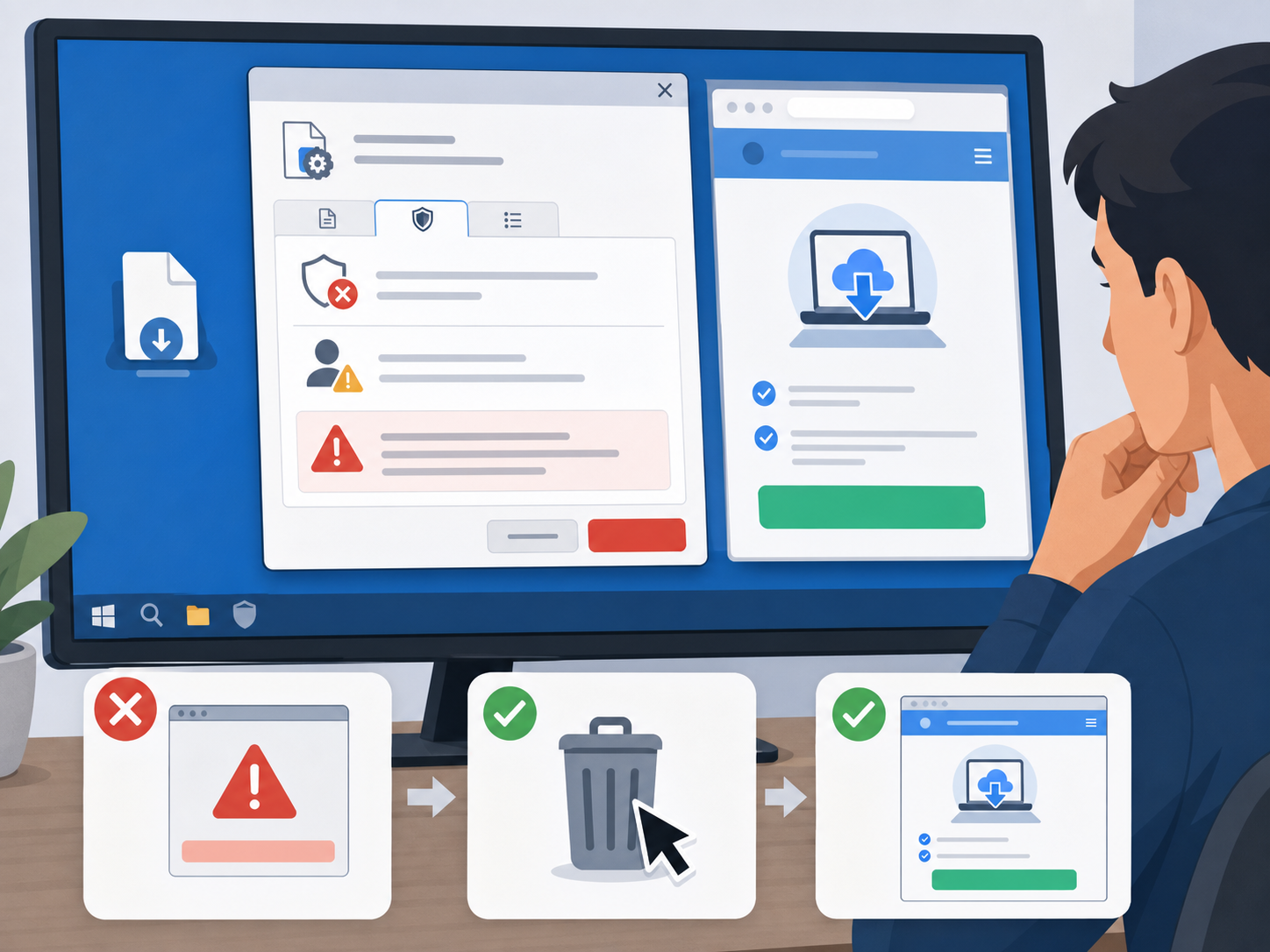
If the Digital Signatures tab is missing, the publisher is unknown, or Windows warns that the file is unsigned or has been altered, do not install it. Delete the file and download it again from the official source.
On macOS
- Open Finder and locate the downloaded Proton VPN app or installer package.
- Control-click the file and choose Open only after confirming it came from the correct source.
- Pay attention to Gatekeeper messages. macOS should identify the developer and block files that fail notarization or signature checks.
- If macOS says the app is from an unidentified developer or cannot be checked for malicious software, stop and re-download from the official source.
For advanced users, macOS also supports command-line checks such as code signature and notarization verification. Most users, however, can rely on Gatekeeper warnings plus careful source verification.
On Linux
For Linux, the safest approach is usually to use Proton’s official repository instructions rather than downloading a random package file. Repository-based installs allow your package manager to verify signed packages and receive future security updates.
- Use the official Linux setup instructions for your distribution.
- Install repository signing keys only from Proton’s official instructions.
- Use your package manager to install and update the VPN app.
- Avoid standalone packages from forums, mirrors, or unofficial scripts.
If you are manually installing a package, verify that it came from the correct source and that your package manager does not show signature or integrity warnings.
On Android and iOS
For mobile devices, the safest route is the official app store for your platform. On Android, avoid APK files unless you have a strong reason and can verify the source. Modified APKs are a common way to distribute malware under the name of a trusted app.
- Check the developer name before installing.
- Review app permissions and update history.
- Do not install a “modded” Proton VPN APK.
- Keep Google Play Protect or Apple’s built-in protections enabled.
Step 4: Use checksums when they are provided
A checksum is a short fingerprint of a file. If the publisher provides a checksum, you can compare it with the checksum of your downloaded file. If even one character differs, the file is not identical and should not be installed.
Checksums are useful, but they only help if you get the checksum from a trusted source. A malicious mirror can publish a matching checksum for a malicious file. That is why checksums should support, not replace, source and signature checks.
What to do if no checksum is available
Not every consumer app download page publishes checksums in a prominent place. If you cannot find one, focus on three things: the official source, a valid digital signature, and the absence of operating system security warnings. If any of those fail, do not install the file.
Safe vs risky Proton VPN download indicators
| Check | Safe indicator | Risky indicator |
|---|---|---|
| Download source | Official Proton page, official app store, or official repository | Mirror site, file-sharing link, ad landing page, or software bundle portal |
| File signature | Valid digital signature from Proton or the official publisher | Unsigned file, unknown publisher, invalid certificate, or altered signature |
| Installer behavior | Installs only Proton VPN and expected components | Offers toolbars, browser extensions, unrelated antivirus tools, or “system optimizers” |
| File name | Clear product name and normal installer extension | Names with “crack,” “patch,” “premium unlocked,” or random characters |
| Browser or OS warnings | No malware warning and publisher can be verified | SmartScreen, Gatekeeper, antivirus, or browser warnings about trust or malware |
| Mobile listing | Official developer, consistent app history, normal permissions | New clone app, copied logo, unusual permissions, or low-quality fake reviews |
Common warning signs of a malicious mirror
Malicious mirrors often try to create urgency or convenience. They may claim to host a faster installer, an older version, a region-unlocked build, or a special premium edition. These are red flags, especially for privacy tools.
- The page has several large “Download” buttons and it is unclear which one is real.
- The site asks you to install a downloader before giving you the Proton VPN installer.
- The file is compressed in a password-protected ZIP or RAR archive.
- The page disables right-clicking, opens pop-ups, or redirects repeatedly.
- The installer asks for unnecessary permissions before installation begins.
- The file is much smaller or much larger than expected without explanation.
- Your antivirus or operating system flags the file as suspicious.
What to do if you already downloaded a suspicious installer
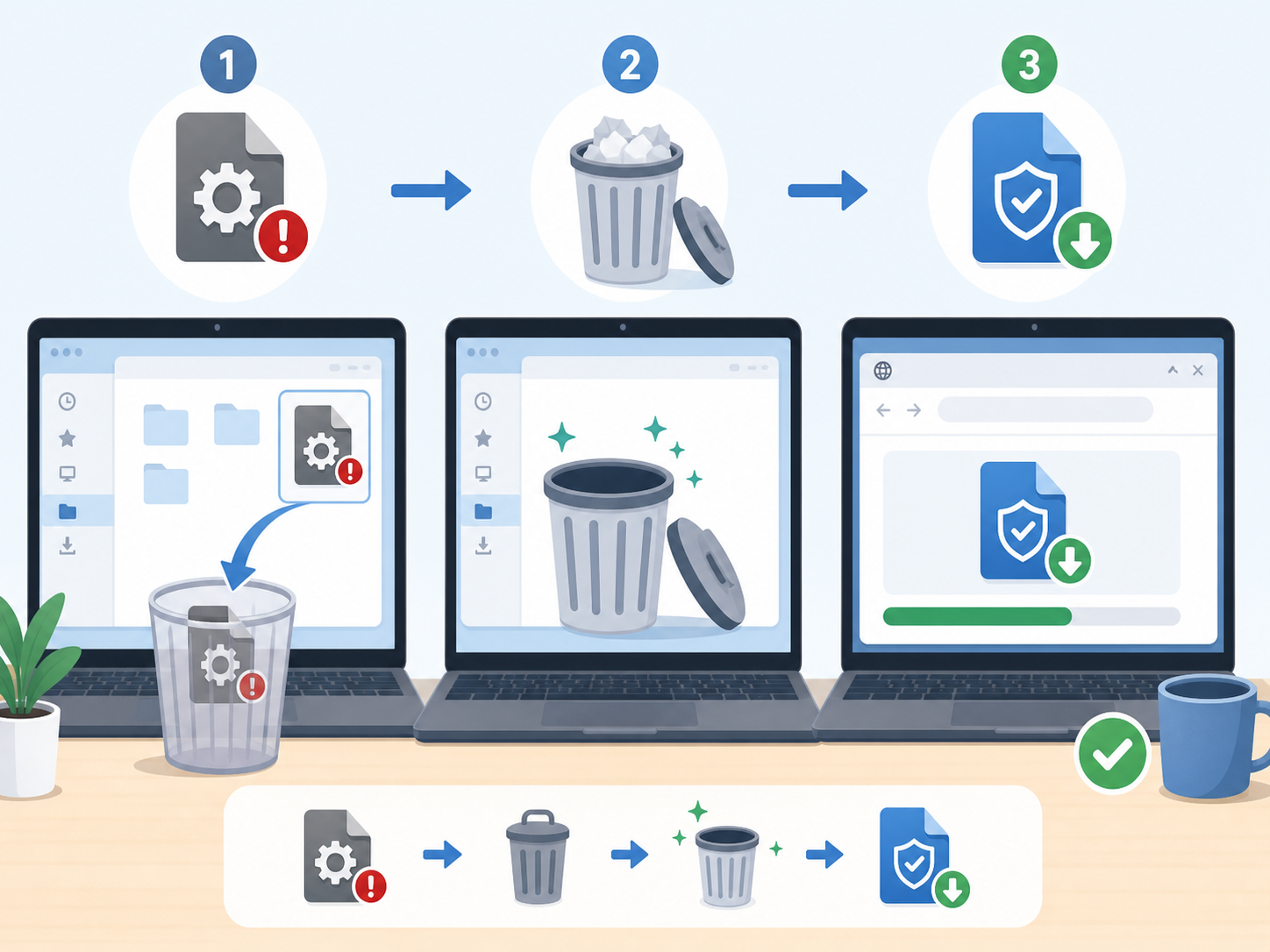
If you downloaded a questionable installer but have not opened it, delete it and empty your trash or recycle bin. Then download a fresh copy from the official source.
If you already ran it, take the situation more seriously:
- Disconnect from the internet if the installer behaved strangely.
- Uninstall any unknown apps that appeared during or after installation.
- Run a full antivirus or endpoint security scan.
- Check browser extensions and remove anything you did not install intentionally.
- Change important passwords from a clean device, especially email and password manager credentials.
- Reinstall Proton VPN only from a verified source.
If the suspicious installer requested administrator access, changed system settings, or installed background services, consider asking a trusted technician to inspect the device.
A quick verification checklist before installing
- I used an official Proton-controlled source or official app store.
- The page did not come from an ad, mirror, shortened URL, or software bundle site.
- The file name looks normal and does not mention cracks, patches, or unlocked plans.
- The installer has a valid digital signature where my operating system supports it.
- My browser, antivirus, and operating system did not show trust or malware warnings.
- The installer does not offer unrelated apps or browser add-ons.
- If a checksum is available, it matches the downloaded file.
Conclusion
The safest way to verify a Proton VPN installer is to combine several checks instead of relying on only one. Start with the official source, confirm the publisher or digital signature, avoid mirrors and modified versions, and take operating system warnings seriously. A few minutes of verification can prevent installing a fake VPN client that compromises the privacy you were trying to protect.
FAQ
How do I know if my Proton VPN download is official?
Use Proton’s official download page, an official app store listing, or Proton’s official Linux repository instructions. Then confirm the publisher, digital signature, and installer behavior before installing.
Is it safe to download Proton VPN from a mirror site?
No. Mirror sites can host outdated, modified, or bundled installers. For security software such as a VPN, you should avoid mirrors and download only from official sources.
What should I do if the Proton VPN installer is unsigned?
Do not install it. Delete the file, download it again from the official source, and check whether your operating system shows a valid publisher signature.
Can I trust a Proton VPN APK from a third-party website?
You should avoid third-party APK sites unless you can fully verify the source and integrity of the file. For most users, the official app store is the safer Android installation method.
Do I always need to verify a checksum before installing Proton VPN?
Use a checksum if Proton provides one, but do not rely on it alone. The most important checks are still the official download source, a valid signature, and no security warnings from your device.